The best way to manage audio devices on your Mac
★★★★★
4.9 from 14 reviews
- 🤩 Automatically use your preferred devices
- 🎧 High quality audio with your bluetooth headphones
- ✋ Stop manually changing your mic every time
- 😌 Easiest way to switch devices when you need it
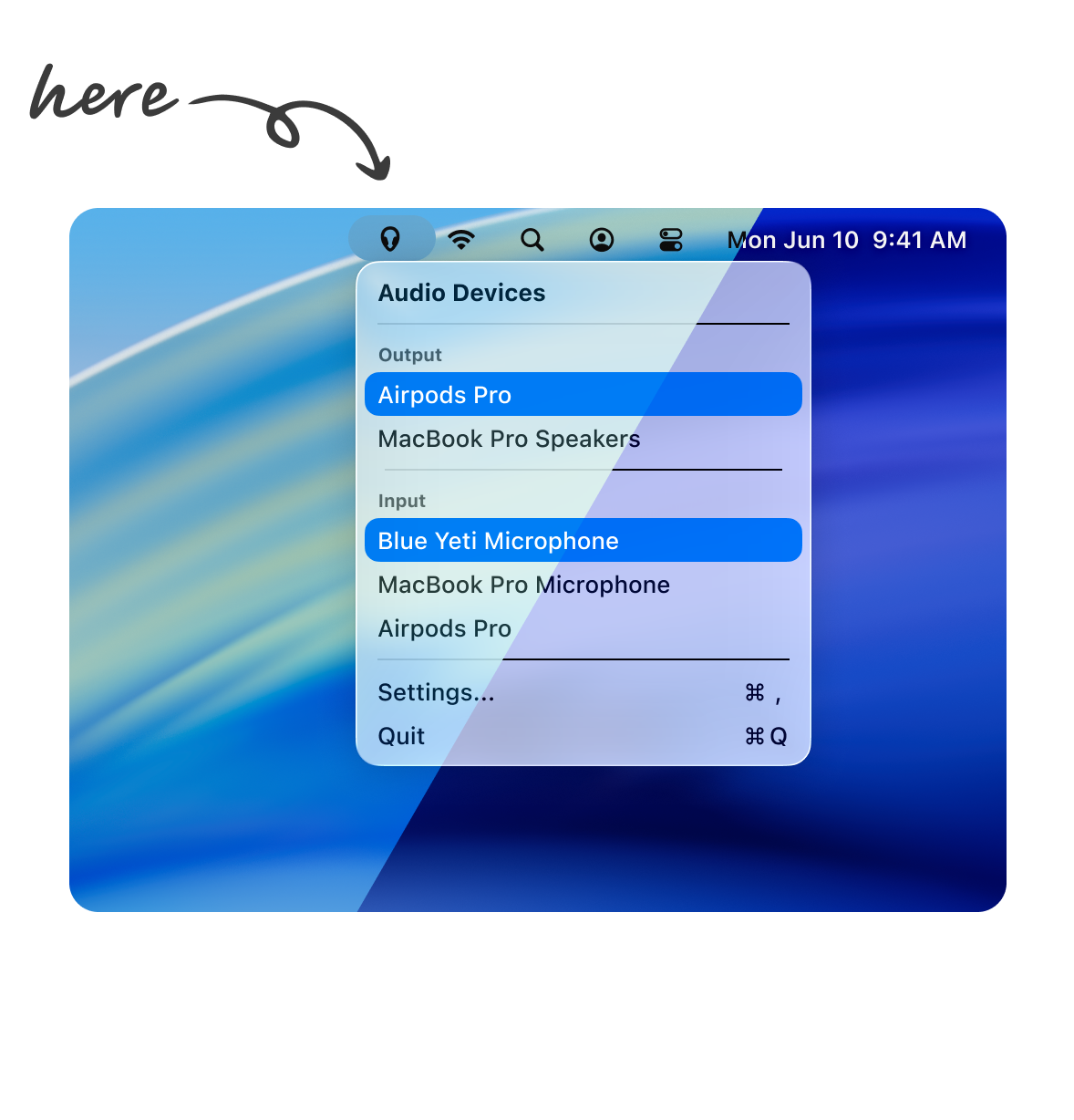
Mac messes up your audio devices
Recadio fixes it. Finally
✅ Set your preferred device order
Set and forget
✅ Automatically switch to your preferred device
Recadio will auto-switch to the connected device with highest preference
✅ Easily lock a device when you need it
For those special times when you need to override the preferences
✅ Easy to reach
One click away on your menu bar, or using a keyboard shortcut.
The w…
The best way to manage audio devices on your Mac
★★★★★
4.9 from 14 reviews
- 🤩 Automatically use your preferred devices
- 🎧 High quality audio with your bluetooth headphones
- ✋ Stop manually changing your mic every time
- 😌 Easiest way to switch devices when you need it
Mac messes up your audio devices
Recadio fixes it. Finally
✅ Set your preferred device order
Set and forget
✅ Automatically switch to your preferred device
Recadio will auto-switch to the connected device with highest preference
✅ Easily lock a device when you need it
For those special times when you need to override the preferences
✅ Easy to reach
One click away on your menu bar, or using a keyboard shortcut.
The way it should be.
Users love Recadio
Pricing
Includes:
- Manually select audio devices
- Keyboard shortcuts for power users
- Launch at login
- Apple certificate signature
Includes everything in the free version, plus:
- Auto-select by device priority
- Auto-select by connected devices
- Device locking
FAQ
Common Questions & Answers
Find the answers to the most common questions I get. Or just ask me by email at [email protected]
1
Why do I need Recadio?
Every time you connect a bluetooth device, Mac automatically switches to it, which causes your audio quality to drop.
Recadio prevents it and select your preferred device instead.
2
How does Recadio work?
Recadio stops your Mac from switching to low-quality sound when you use bluetooth headphones. Set it once and forget about it.
3
Does it work with AirPods?
Yes.
4
Does it work with my bluetooth headphones?
Yes. It works with any bluetooth headphones that you can link to your mac.
5
Does it work with AirPlay devices?
No. Unfortunately, AirPlay support from Apple is very limited and I can’t implement a solid solution for it.
6
Does it work with my external microphone?
Yes. It works with any microphone you can use on your mac.
7
How can I hide devices from the list?
Go to Recadio’s Settings > Devices, and deselect the toggle on the "Visible" column.
I you also want to remove it from the list, you can do that by right-clicking and selecting "Forget...". You can forget multiple devices at once by selecting the devices before forgetting.
8
I can’t select a device in the macOS system preferences
If you selected the device in the system preferences menu, there’s no way for Recadio to know if it was you or the system making the selection. Therefore that selection is ignored. You can select the device in Recadio instead.