
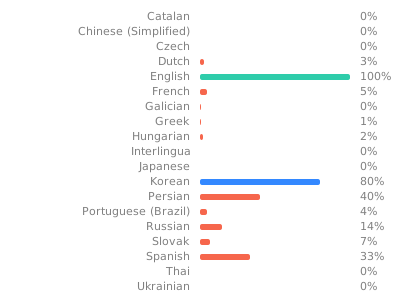
You are currently reading the English (main) version of the KOReader User Guide. Also volunteers are translating this guide to other languages. We have many translations in progress, as you can see in the overall translation status below. But we only link to the languages which are translated above 50% for usability reasons.
To see all the languages currently being translated and to contribute to the translation efforts of the user guide, please visit the Weblate translation page of our project.
Overall translation status of the user guide
Guide for this …
You are currently reading the English (main) version of the KOReader User Guide. Also volunteers are translating this guide to other languages. We have many translations in progress, as you can see in the overall translation status below. But we only link to the languages which are translated above 50% for usability reasons.
To see all the languages currently being translated and to contribute to the translation efforts of the user guide, please visit the Weblate translation page of our project.
Overall translation status of the user guide
Guide for this user guide :)
This guide is primarily designed for color screens. If you are using it for the first time, we highly recommend reading this on a computer, tablet or mobile. Because seeing user interface elements highlighted in color will make your life easier while learning how to use KOReader. Of course you can read this on your e-ink device too, but the experience will not be optimal.
You can use the search function of your browser to find a specific topic or keyword (generally Ctrl + F). If you have a suggestion or question related to this user guide, you can write to this GitHub discussion thread.
Parts of the text in this guide are color coded according to their categories:
| PARTS OF KOREADER (BLUE) | Status bar, Book map… |
| MENU PATHS (GREEN) | |
| EXTERNAL APPS (PURPLE) | Calibre, Readwise, KoHighlights... |
We also have different boxes throughout the guide to inform or warn you:
WARNING I am a warning box. I explain things when you need to be extra careful.
INFO I am an info box. I give contextual information or extra explanations.
TIP I am a tip box. I contain tips that makes your life easier when using KOReader.
!!! ADVANCED I am an ADVANCED tag. If you see me on a topic, it means that you need to have a certain degree of technical knowledge like working with a file system, CSS knowledge, installation of external files etc. depending on the procedure.
KOReader is developed and supported by volunteers all around the world. You can be a part of this project too by:
- Fixing bugs and implementing new features
- Translating the program into your language or improving an existing translation
- Helping others with your knowledge in the forums or on GitHub issues and discussions
Check Reach us section for the links.
Guide last update: 2025-03-25
TABLE OF CONTENTS
INFO Newly added or updated sections since the last guide release are marked with a
WHAT CAN YOU DO WITH KOREADER ?
Despite its minimalistic looks, KOReader is a very powerful and customizable application. This section is like a table of contents which is how-to oriented. So if you are a new user, this is the best place to start. Here you can read what KOReader can do and learn how to do it by following these links to go to the mentioned sections.
INFO Name of KOReader comes from the beginnings of the project: Kindle/Kobo Open Reader. Of course the reader grew so much over the years, now an accurate abbreviation would be something like KKPRCSALMOReader (Kindle Kobo Pocketbook Remarkable Cervantes Sony Android Linux MacOS Open reader) but this is not that nice to pronounce, so we choose to keep it simple :)
Transfer your reading materials in different ways
- USB mass storage mode for supporting devices
- Cloud storage (Dropbox/FTP/Webdav) with suitable accounts
- KOReader can act as an SSH server, so you can use an SFTP application or your file manager to directly transfer files
- With the Calibre plugin you can send books from your Calibre Library directly to your KOReader devices over wifi
- With the News downloader plugin you can download RSS and Atom news entries to your device as HTML files
- With the Wallabag plugin you can retrieve articles from your Wallabag account (a server based read-it-later service like Pocket)
Adjust the appearance of text as you wish
- Change fonts (including your own), font size, contrast, boldness, kerning, word spacing, word expansion, text alignment, line spacing, column layout, margins...
- Use the included powerful style tweaks or write your own ones to change how your books are rendered precisely
- Invert screen colors for night mode manually or automatically
- Adjust your frontlight color warmth automatically
Take notes and make highlights while reading
- Highlight text with different styles and colors, place bookmarks
- Two-tap mode for academic/longer highlights
- Add notes using a customizable keyboard including diacritic modifiers
- Take screenshots
- Track your reading statistics including reading progress, time range and calendar views
Export your notes and highlights flexibly
- Export your notes and highlights to your device as text, markdown, HTML, JSON or Kindle clippings format
- Synchronize to online services like Joplin, Readwise, Memos, Flomo and XMNote
Arrange and browse your library easily
- Powerful File Browser where you can copy, move, rename, create, delete files and folders and perform bulk operations
- See your library as you like with many detailed and mosaic views
- Add your books to your Favorites for quick access or create your own Collections with sorting and filtering
Fly through your book with powerful tools
- Skim widget to quickly jump between pages, chapters, bookmarks
- Unique Book map to see a bird’s eye map of your book including all your notes and highlights
- Page browser to move through pages like a film reel
- Bookmarks browser to browse your highlights and notes easily
- Create an alternative table of contents automatically or manually if you don’t like the one that comes with your book
- Hide and exclude certain parts of your book like Appendix, Index, References etc. for more accurate page counts
Control KOReader like a virtuoso
- Powerful gesture system with 200+ actions allows you to control every aspect of KOReader with a tap or swipe
- If you have a keyboard (internal, wired or bluetooth) you can also assign keyboard shortcuts to these actions
- Or create your own menus with your favorite actions with Quick Menu and access them with a tap or swipe
- Create Profiles to control every aspect of KOReader and automate actions
Search, Lookup and Translation tools
- Search the document by selecting or entering text (including regular expressions)
- Search in your bookmarks, highlights and notes
- Lookup text in Wikipedia or in installed dictionaries and translate it by a long-tap
- Translate whole page at once between more than 130 languages
- With our poweful plugin system, you can even discuss the text with ChatGPT (after installing the plugin)
KOReader can control your device
- KOReader can update itself
- Dim or turn off your screen light after a set interval
- Set your page refresh intervals for different reading conditions
- Set your own screensaver from many options like random images, book cover, reading, progress etc.
- Set battery charge limit alarms to prevent deep discharge/over charge
- Set a memory usage alert (useful for devices for smaller memory) and optionally restart KOReader upon reaching this limit
PDF documents are easier to read on e-ink with KOReader
- Crop margins automatically or manually
- Reflow documents to extract text and read easier on a small screen
- Apply OCR to documents without text layers, like scanned old books
- Different zoom types and page flow directions to read multi-column documents like scientific articles easily
- Auto straighten tilted documents, like scanned old books
- Save your highlights directly into PDFs which allows you to see them without KOReader
- Special Panel zoom feature for reading mangas
- Adjustable screen refresh settings for perfectly balancing between ghosting and speed
Advanced features for power users
- Add your own CSS style tweaks for books
- User patches system which allows you to change the core behaviors of KOReader
- Create a QR code from your clipboard to share text and links to other devices
- View HTML source of an EPUB document
- Create and edit text files on your device
- Open a terminal emulator and run commands on your device
- See your CPU, memory and battery usage stats
BASIC USAGE INFORMATION
Transferring books to your reader
KOReader supports PDF, EPUB, DJVU, MOBI, CBZ, CBT, DOCX, RTF, HTML, TXT, XPS, FB2, PDB, CHM and MD files. It can also open ZIP archives and show image files.
There are many ways to transfer your documents to your device. Note that you may need to restart KOReader to index the transferred documents (or refresh directory if you have Pocketbook/Android).
In addition to transferring files the same way you would with the built-in reader application, other options are available depending on your device:
- USB mass storage mode within KOReader: This mode is available for KOBO and some CERVANTES devices.
- Cloud storage (Dropbox/FTP/Webdav): To use this function you have to add accounts for a cloud storage server via menu shown below. Process is explained via info buttons in the menu while adding accounts:
- SSH/SFTP access: KOReader can act like an SSH server, which you can access from a computer to transfer files (available on Kobo, Kindle, Cervantes). You can use an SFTP application (like Filezilla) or access via your file manager if your operating system supports. Check our wiki for how-to and also see the warning box below.
- Calibre transfer: With the Calibre plugin you can send documents from your Calibre Library directly to your KOReader devices via a wifi connection. Check our wiki for how-to.
- News downloader: With this plugin you can download RSS and Atom news entries as HTML files. Check wiki for how-to.
- Wallabag: With this plugin you can retrieve articles from Wallabag, a server based read-it-later service like Pocket. Check wiki page for more info.
WARNING Be careful if you decide to use the SSH feature without a password, because this allows open access to your device. But if you are using a local wifi and turn on your device wifi for a short time, this risk is negligible.
Accessing your books
Following methods are available for accessing your books:
- File Browser - Dedicated section is here: File Browser usage
- Favorites - A list which you can add your books by long pressing on them in the File Browser
- History - List of books you opened
- Collections - Personalized book lists you created. Dedicated section is here: Collections
You can change how these screens look from:
If you want to change how many items are visible on these screens, look here:
You can assign gestures for each of these dialogs. For example while reading a book, you can access your History or Favorites with a gesture and open another book without going through the File Browser.
You can search a book in the History screen by filename or book metadata from the upper left hamburger menu button.
You can also set KOReader to start with Favorites or History screen instead of File Browser via:
Tap zones

In the image above, you can see the positions of the default tap zones of KOReader. To show the top menu or bottom menu you can tap the indicated zones. You can also swipe down the upper zone to show the top menu. On non-touch devices like Kindle 4 you can open the bottom menu by pressing the button that corresponds to the ENTER/OK action.
TIP As indicated in the image above, top menu opening zone is divided into 3 areas. If you swipe down the first 1/3 of the top edge, top menu opens with the first menu tab. Second 1/3 area opens the most recently used menu tab. And last area opens the last menu tab.
If you want top open both menus at the same time, you can set top menu zone to open both the top and bottom menu at the same time via this menu:
Corner tap zones can be used for many different type of gestures including TAP, DOUBLE TAP, TWO FINGER TAP and TAP and HOLD.
PREVIOUS PAGE and NEXT PAGE zones can also be used for DOUBLE TAP gestures at the same time.
Status bar zone can be tapped to cycle between the status bar items if only one item is visible. If all items are visible, tapping will show and hide the status bar.
Changing text appearance
- Changing the font*:
- Make the font bigger
- Make the font bolder
- Invert the colors on screen (white on black)
You can also change other formatting options from the BOTTOM MENU to fine tune the appearance of your text. These are just quick tips to get you started of course. We have a full section dedicated to CUSTOMIZING TEXT APPEARANCE
INFO *Font selection is available only on reflowable documents (EPUB, HTML, DOCX, RTF, TXT…). Fixed-layout documents like PDF/DJVU are not supported.
Controlling the backlight / frontlight
You can control your screen light via this menu. If you have warm lighting (normal white LEDs+orange ones) you can control them separately from this dialog. You can also define a gesture for this dialog:
Changing the screen displayed while sleeping
You can choose a book cover or a custom image as screensaver via this menu:
You can use JPG/PNG files as screensaver (properly dithered grayscale images look best). Transfer the files from your computer into any folder on your device. And choose this folder as your screensaver folder via this menu:
Please refer to this Mobileread forum post for advanced information about preparing screensaver images.
Keyboard Usage And Tips
If you are looking for information about keyboard shortcuts, click here to go that section. This heading only explains the keyboard usage.
- Tap outside the input field to close the keyboard, tap the input field to show the keyboard again
- Swipe up keys to enter uppercase version of that letter (or lowercase if you are already in shift mode)
- You can change the appearance of the keyboard:
- You can select more than one layout:
- You can change between your selected layouts by tapping the
 icon on the keyboard
Entering extra characters
Koreader keyboard allows entering extra characters when you tap and hold a key. Most frequently used extra characters are shown below. You can tap and hold the key in the gray box to get the surrounding characters:

In addition to the long-press popup, you can also enter these extra characters by swiping on a key. In the example below, you can swipe up on the a key to enter an uppercase A or swipe other directions to enter the characters shown. Note that the example shown includes the full popup for demonstration. You don’t need to open this popup, you can directly swipe on the keys. Once you get used to the locations of the extra characters, you can enter them much quicker this way.

If this feature interferes with your usage, you can disable it by unchecking:
Additionally there are some shortcuts for easier text manipulation. You can tap and hold these keys for extra actions:
- Left Arrow - Moves the cursor to the beginning of the line
- Right Arrow - Moves the cursor to the end of the line
Also backspace key behaves different when you make swipe gestures on it:
- Tap: Delete a character
- Long-press: Delete the whole line
- Swipe left: Delete part of the word left of the cursor
- Swipe up: Delete the whole word
For more information, you can check the related wiki page.
KOReader also integrates the Chinese stroke keyboard for inputting simplified and traditional Chinese characters. You can find more info about it in our wiki.
Auto Warmth And Night Mode
This plugin allows you to adjust frontlight warmth in devices with natural (yellow/orange) light and set night mode (inverted screen colors – white text on black background) automatically according to a schedule. It can control them both or you can choose only warmth control or only night mode control mode, so you can adjust the other one manually.
This plugin comes enabled as default when you install KOReader. If for some reason it is not in the menu, you can enable it here:
INFO If you have a PocketBook device and frontlight or warmth slider is not working in KOReader, please be sure that in the PocketBook reader (which comes with your device) SmartLight-Auto option is set to Disabled.
You can adjust the warmth of your screen frontlight automatically in two different ways:
Fixed schedule: In this mode your frontlight warmth changes according to the daily schedule you entered. This mode is static, it doesn’t account for daylight length. The schedule stays the same all around the year.
Sun’s position: This option calculates Sun’s position in your location according to coordinates and altitude information you entered. Frontlight warmth is adjusted gradually according to this calculated Sun position data. This mode is dynamic. As the length of daylight changes around the year, plugin adjusts the schedule accordingly.
First have a look at this image to familiarize yourself with the terms used in the plugin:

Fixed Schedule Mode
- Go to the plugin menu:
- Tap Activate menu item and then tap According to the fixed schedule
- Go back to previous menu and tap Fixed schedule settings menu item
- Set your warmth transition schedule by setting times for various items here. Refer to the image above for an explanation of items.
Sun’s Position Mode
- Go to the plugin menu:
- Tap Activate menu item and then tap According to the sun’s position
- Go back to previous menu and tap Location settings menu item. Set your coordinates (necessary) and altitude (optional) correctly and give a name to your location.
- Go back to previous menu and tap Warmth and night mode settings menu item
- Set your warmth transition schedule by setting times for various items here. Refer to the image above for an explanation of items.
You can see your current schedule via Currently active parameters menu option.

Night Mode
While setting the warm light percentages for different intervals, you can also set that interval to Night Mode, which inverts the screen colors when that interval starts. If your minimum frontlight is still too bright or if you prefer a dark page background, you can activate this feature. To enable this, in the dialog below, tap the Night mode checkbox and tap Set.
When you do this, a moon icon will appear in the menu next to this interval. To disable night mode, just disable the Night mode checkbox in that interval.

Frontlight auto on/off
This feature turns your frontlight on at sunset and turns it off at sunrise according to your Currently active parameters in this plugin. You can override this change by manually turning your frontlight on/off. On the next sunrise/sunset, AutoWarmth will toggle it again if it is necessary. You can activate it by selecting Frontlight off during the day menu item in this plugin.
Faster warmth transitions
If you want your frontlight warmth to change quickly instead of a more gradual change:
- Set the mode to Fixed schedule following the instructions above
- And adjust the settings similar to the image below:

As you can see in these settings above, there is only a one minute difference between day-night transition. So the screen warmth goes from 0 to 100 (or reverse) in only one minute. You can increase this time separation to make the transition duration longer.
LEARNING THE USER INTERFACE
KOReader has a simple, mainly black and white user interface because gradients and different shades of gray can cause flashing and ghosting on e-ink screens which can degrade reading experience.
KOReader has 2 main interfaces: reading screen and file browser. We will explain reading screen here. File browser is explained under this section of the guide.
Reading Screen
READING SCREEN has two menus:
- TOP MENU includes menu items related to the general usage of KOReader. You will access your books, KOReader preferences, plugins etc. here.
- BOTTOM MENU is focused on options for document formatting like font weight/size, line spacing etc. While adjusting your text appearance, you will mostly interact with the BOTTOM MENU.


Image above shows the elements you can see on your reader screen when reading a book:
- Indicator icons: These icons inform you about certain ongoing processes and states. You will see them at the top left corner of your screen during certain operations. Normally they are smaller but here we show them bigger for clarity. Next heading explains these indicator icons in detail: Indicator icons
- **Status bar:**This is a highly configurable area where you can see various information about your book and KOReader. Click here to go to the section: Status bar
- Alternate Status bar: In addition to the default Status bar, we have an Alt status bar which appears at the top of the page if you enable it. Click here for details: Status bar
- Reference page numbers: If the publisher of your book included the page numbers from the paper printed version of the book, you will see them like this. Click here for more info: Page numbering and reference page numbers
- Highlight types: You can see the different highlight types here. Also you can make colored highlights if your device has a suitable screen. Click here to go to the section: Bookmarks, Highlighting and Notes
- Note marker: Note marker icon shows up when you add a note to a highlight. We have different types of note markers. Click here for more info: Bookmarks, Highlighting and Notes
Indicator icons
KOReader has some indicators to inform you about certain ongoing processes and states as you can see in the image above. You will see them at the top left corner of your screen during certain operations.
    | Partial rendering icons This group of icons belong to the partial rendering procedure and probably you will see these icons more frequently than the others. You see these icons when you change the settings on the bottom menu. This feature, allows you to preview the text appearance adjustments much quicker by only rendering the current chapter instead of the whole book. Also rotating your screen orientation is now much faster thanks to this feature. This feature is ENABLED by default. If necessary, it can be disabled per book (with a tap), or globally (with a long-tap) on: After confirming your changes whole book has to be re-rendered so this is a multi-step procedure. These icons shows the stage of rendering as explained below: |
| In this stage, document is partially rendered. Page count, footer info and many things are innacurate. You can see how the new settings look and adjust further. You can also turn pages, jump links in this state. |
| A full rendering is happening in the background. You can still turn pages, jump links, change settings. |
| Full rendering is done, but not yet applied because KOReader is waiting for you to be idle to reload the rest of the book (idle=not interacting with the device). You can still turn pages, jump links, change settings. |
| You’ve been idle for a while so KOReader is now reloading the whole document. At this step KOReader is blocked to prevent interaction. |
INFO Partial rendering is only possible if your EPUB is composed of multiple fragments. EPUB files are basically .zip archives that contain .html files. Some books can be a single .html file while others may be composed of multiple .html files like each chapter of the book is a separate .html file. If your book is only a single .html file, partial rendering can not work, because for each change KOReader still has to calculate the whole book.
 | Highlighting icon This icon shows up when you are in the Select and highlight mode. KOReader has an additional highlight mode which allows you to start a highlight and turn pages to make long highlights which can span multiple pages. You can read about this in the BOOKMARKS, HIGHLIGHTING AND NOTES section of this guide. When you start a highlight in this mode, this icon is shown at the corner to remind you that you are still in the highlighting mode. It disappears when you finish your highlight by selecting the end of the passage or when you cancel the highlight (by tapping again on the beginning of your highlight or on this highlighting icon). |
 | Pokemon ball icon This icon shows up when you press for a long time on a word (intentionally or accidentally). KOReader has a normal long press menu. And an additional very long press menu when you hold your finger longer than 3 seconds. This icon means that you activated this very long press menu. |
 | Flip mode icon This icon shows up when you tap the top left corner if:+ You are reading a PDF document + And you are in a zoomed in view other than 100% (column, row or manual) or in the reflow mode This mode temporarily displays the full page without cropping, scaled to fit your screen. You can turn the pages in this mode. To exit this mode, tap on this icon. |
Page numbering and reference page numbers
Document types like epub, mobi, html naturally don’t have fixed page numbers because they are reflowable documents. Which means, these documents can be adjusted according to the screen size and orientation of the device (unlike pdfs or djvu files for example, which have a fixed page size).
If you increase the font size of a reflowable document, your page count will increase too, because now less text will fit on a single page. This sometimes causes a problem because a highlight which you made on page 38 might be on page 42 after the font adjustment.
KOReader supports Reference page numbers feature which allows publishers to embed page numbers from printed books directly to the e-book version. When you enable this feature, KOReader doesn’t calculate the page numbers itself. Instead, it shows you the embedded page numbers from the publisher. This means, the page number you see in your Status bar matches the print version of the book.
Benefits of reference page numbers:
- Reference page numbers enable accurate citations by matching the page numbers found in the printed versions.
- Reference page numbers can aid in navigation, especially for readers who are familiar with the print version of a book. It can help you find specific passages or quotes more easily in the digital version.
- Since digital books can be read on various devices and platforms, each with its own font size and display settings, shown page numbers can vary significantly. Reference page numbers provide a consistent point of reference when reading the same book on different devices like e-reader and phone at the same time.
You can enable this feature from:
If you also check the Show reference page labels in margin option from the same menu, this page numbers will be shown next to the text in a small font.
Please note that this menu appears only if there are embedded Reference page numbers in your book.
Status bar
KOReader have two status bars, a Bottom status bar which is enabled by default. And we have an Alt status bar which appears at the top of the page if you enable it. This Alt status bar is available only in reflowable documents (epub, html, docx, rtf, txt…).
Bottom status bar is the newer one which is actively maintained. Alt status bar is a remnant from earlier versions of KOReader so we are not adding new features to it. But you can still enable this Alt status bar if you find it useful. You can enable it from:
You can configure the Alt status bar from this menu:
Instructions in the rest of this section are for the Bottom status bar.
Configuring the status bar
You can configure the bottom status bar from this menu. Feel free to explore the SETTINGS sub-menu to customize your status bar as you like.
There are many items you can show on the status bar. But by default, only one is shown at a time and you have to tap on the status bar to cycle between them. If you want to show all items at once, enable it from here:
If you enabled the option above, you can’t hide the status bar by tapping on it. If you want to hide it, you should assign a gesture here for toggling the status bar:
Sorting the status bar items:
Using "Custom Text" item for status bar alignment
There is a special status bar item named Custom text. This item can show your chosen text in the status bar. You can also use this feature to create a separator between the status bar items as you can see in the example below:

- First enable this option with a short press on it from this menu
- Then long-press on it again to open its settings. Enter a "space" character in the first box and enter the number of repetitions in the second box, which will determine how wide your separator will be.
You can choose another character as a separator. You can also move this item like other status bar items to change its order to adjust your groups.
Chapter progress bar
Progress bar in the status bar normally shows your progress for the whole book. But it can also show your progress for the current chapter instead. This can be useful for example, if a book has lots of short chapters. In this case it might be hard to see your progress in the current chapter so chapter status bar can be more informative here. You can enable the feature from this menu:
Also you can assign a gesture to switch between normal and chapter progress bars. You can find this action under:
Top Menu Items
Here we will only give an overview of the items in the top menu structure to make you familiar with the menu. Detailed information is available under the related sections of this guide.

 NAVIGATION: This menu contains items that allows you to navigate the book you are currently reading. Table of contents, bookmarks, book map...
 TYPESETTING: This menu contains items that allows you to change the appearance of your book. Font settings, style tweaks...
 SETTINGS: This menu contains settings for KOReader and your device. E-ink, light, gesture settings...
 TOOLS: This menu contains plugins that can expand the functionality of KOReader.
 SEARCH: This menu contains items related to search and lookup. Text search, dictionary, translation, Wikipedia...
 FILE BROWSER: This button opens the file browser which is the interface for managing your library.
 MAIN: This menu contains tools for accessing your books like history, favorites, collections. Also book information, update and exit items are under this menu.
Bottom Menu Items
TIP If you long tap on their names, you can see an explanation of these items

View mode: If you change to continuous mode you can scroll the document like a web page. This mode is more suitable for non e-ink screen types (LCD, OLED). In continuous mode you lose top and bottom margins so text may be cut on the first and last line of screen. To solve this problem you can enable Page overlap:
Render mode: This option determines how your document is rendered by KOReader. Default is WEB and generally you don’t need to change this setting. When a book (or saved web page) is very complicated (specified widths or margins, negative margins, floats etc.) and layout looks bad or overflow the screen, you can try other rendering modes.
Zoom (dpi): This setting can be thought of as a general zoom factor for the document (except font size). At 96 dpi (which is the default setting), images in the document are rendered at their original dimensions. Basically you will use this setting if you want to make images bigger without making the text bigger.

Word spacing and Word expansion settings are related and they determine how your text will look when it is justified. When you justify text, space is added between words so that both edges of each line are aligned with both margins. Since word counts of lines are not equal all the time, in justified alignment, text has to be compressed or expanded to fill the line.
Word spacing: How much the space characters in a line of text can be compressed to fit more words. This setting doesn’t affect words, it only changes the space between them.
Word expansion: If you have too much white space in a line, how much of that can be distributed into the words by expanding them. This setting affects the appearance of words. If you don’t want your words to expand, set this to none.
You can experiment with different settings until the text looks pleasing to you, then set them as defaults via their respective dialogs.

Contrast and Font weight are two options that you can use to make your text bolder (or lighter). You can achieve the same appearance with either of these options but they use different methods to achieve it. Of course you can use them both at the same time.
The differences between them can be summarized as:
CONTRAST
+ Doesn’t change font width, book length stays the same
+ Doesn’t need to re-render document, faster
- Might look bad on LCD or low DPI screens
FONT WEIGHT
+ Will use proper weighted fonts if you have them installed
+ Looks better on LCD or low DPI screens
- Has to re-render fonts, slower
Font hinting adjusts your text for maximum readability according to your screen’s pixel grid. native uses font’s internal hinting instructions, auto uses FreeType’s hinting algorithm. auto is a safer choice because font files that you installed may have problematic hinting instructions. Also auto handles CJK text better. You can try different settings to see which one looks better on your device.
Font kerning adjusts the spacing between letters to achieve a visually pleasing result. Default is best option, which might be slower when opening files (depending on your device) but has better support for ligatures (see picture below for an example), joined Arabic glyphs and some other scripts. If your device is slow, you can try good which is faster and may still look correct with western latin-script text.


Alt status bar enables an alternative status bar which is available only in reflowable documents (EPUB, HTML, DOCX, RTF, TXT…). After enabling it here, you can configure alt status bar via:
Embedded style and embedded fonts determine if publisher’s styles and fonts embedded in the document will be used (or ignored) to render the document. These are general on/off switches. You can achieve more fine tuned tweaks for your document via:
Image scaling determines how images in your document are rendered. Best looks more pleasing but it is slower.
User Interface Tips
KOReader’s user interface and options can change depending on the file type you open. There are two main categories of documents:
- Fixed layout documents (pdf, djvu, image files...)
- Reflowable documents (epub, html, docx, rtf, txt…).
KOReader has lots of features so its menu system reflects this complexity. We have a Menu Search feature for finding menu items quickly. If you remember the name of a menu item but don’t remember where it is, you can use this feature:
Also you can assign this feature to a gesture or add it to your Quick Menu for faster access.
| On the bottom menu if you tap and hold an option’s name, you can see its explanation. |
| You can change the interface language via: |
| If you want to change the size of user interface, there is a DPI setting for that: You can choose a value from the menu or select Custom dpi to enter a value for fine tuning: Higher DPI = Bigger Interface. Note that there is also a Zoom (dpi) setting in the bottom bar. That one is related to the documents only. You can find the explanation in the next section. |
If you tap and hold an option or menu item (font weight, line spacing etc.), you can set its value as DEFAULT. The new value will only be applied to books opened from now on. Previously opened books will keep their settings. You can identify default values as a star (★) in the menu or as a black border around the indicators as seen below:   |
| You can close full screen dialogs (History, Table of Contents, Reading Statistics etc.) by swiping down. (Except Bookmarks window. You can use any multi swipe gesture to close this one) |
| You can take a screenshot by making a long diagonal swipe with your finger. Also touching opposing diagonal corners will take a screenshot. You can use this second gesture for example when viewing an image. Also if your device has a keyboard, you can take a screenshot with the Alt + Shift + G shortcut. |
| If you want to open a random page of a book, we have a Jump to a random page action which you can assign to any gesture. It is in the Reader category of the Gesture Manager. |
 In dialogs containing adjustment arrow buttons like the one above, you can tap and hold on arrow buttons to change the value in bigger increments. You can close this type of dialog (non-full screen) by tapping outside of its window. You can move this type of dialog by holding its window title and dragging. You can make this type of dialog semi-transparent by tapping and holding the window title (when you want to see the text under it while adjusting a value). In dialogs containing adjustment arrow buttons like the one above, you can tap and hold on arrow buttons to change the value in bigger increments. You can close this type of dialog (non-full screen) by tapping outside of its window. You can move this type of dialog by holding its window title and dragging. You can make this type of dialog semi-transparent by tapping and holding the window title (when you want to see the text under it while adjusting a value). |
| **Creating new folders - **In situations when you need to choose a location (cloud storage, move to archive plugin, exporter plugin), KOReader presents you a screen that looks like our File Browser. If you want to create a new folder while choosing:1. First navigate to the folder from the Folder chooser screen 1. Then long-press the Home icon shown at the upper-left corner of this screen |
| KOReader supports dictionary lookup in EPUB and scanned PDF/DJVU documents. To see the dictionary definition or translation, just tap and hold a word. Pressing and holding a word brings up a dialog where you can also search the selection in the document for more occurrences or look it up on Wikipedia. |
| If you want to check the current date you can tap on the clock in the TOP MENU. |
Scrolling types
KOReader has three types of touch scrolling. You can access this from:
INFO You have to enable Continuous mode from the Bottom menu to be able to use scrolling.
- Classic scrolling: This mode works exactly like your phone/tablet scrolling.
- Turbo scrolling: This mode allows you to scroll faster than classic scrolling. Also you can scroll several pages without lifting your finger. Scrolling amount is proportional to the distance you move your finger after you initiated scrolling.
- On-release scrolling: This scrolling type is more suitable for e-ink screens. Because unlike other scrolling types, this mode doesn’t refresh your page continuously while scrolling. It works like classic scrolling but intermediate steps are not shown. So when you scroll with your finger and then release, page jumps to that position. This is especially useful to reposition and adjust the view if your book contains pictures or tables and you want to see all of it.
Go back to previous location
This useful feature works like the Back button in your browser. When you jump to some other part of the book using Skim widget, Bookmarks list, Book map etc. KOReader remembers your previous location. This is useful for example if you follow an internal link or reference. With one tap you can go back to where you come from. You can access this feature from:
Also you can go forward too, from the same menu. This feature is assigned to multiswipe gesture. You can assign this to another gesture if you want (like tapping a corner) or add it to your Quick Menu.
Prevent flashing on pages with images and in the menu
KOReader normally perform a full refresh on pages containing images (which you can observe as a black flash). The reason is to get rid of the residue and ghosting from the previous page. But this might not be necessary depending on your device and personal preferences. You can disable this auto-refresh behavior here:
Also you can disable black flashing of user interface from here if it disturbs you:
MOVING THROUGH YOUR BOOK
There are different ways of moving through your document in KOReader with their own strengths. You can use the:
- Skim Widget
- Book Map
- Page Browser
Skim Widget
Skim Widget is a very functional navigation tool. You can use it to:
- Jump to any part of your book by directly tapping on the progress bar or entering the page number
- Navigate between chapters
- Navigate between bookmarks
How to open the Skim Widget:
- With a long-tap on the Status Bar area at the bottom of your screen
- From this menu:
- You can assign a gesture to it
- You can add it to your Quick Menu
Using the Skim Widget
First let’s have a quick look at the diagram below. You will see that we have two different Skim Widgets. They have the same functions, only their size is different:
- FULL-SIZE SKIM WIDGET: This is the default skim widget you will see when you install KOReader. It is bigger than the compact skim widget so buttons are more comfortable to press. This widget opens at the center of the screen.
- COMPACT SKIM WIDGET: This is the slimmer version of the default skim widget. It can be more useful if you are making highlights for example. Since this widget is smaller and opens at the top or bottom of the screen, it doesn’t obstruct the page as much as the default widget.
If you want to use the compact skim widget, you can do this by choosing Top or Bottom from this menu:
TIP Both skim widgets are movable. You can move them by pressing on an empty area of the widget and dragging. Also you can make these dialogs semi-transparent by long-pressing on an empty area on the widget. But semi-transparency is triggered only in its initial position. Once moved, long-pressing moves it back to the initial position.
Now back to the diagram. You can see that on some buttons, there are two descriptions in different colors:** blue and orange**. It means that this button has two functions: a normal press action and a long-press action. If you press normally, it will perform the BLUE function. If you press longer, it will perform the ORANGE function.

**Explanations of the numbered