Security teams rarely look at alerts the same way twice. One day it is critical production vulnerabilities. The next it is a sweep of new npm advisories or a review of operational issues before a release. Until now, recreating those views in Socket meant reapplying the same filters every time.
Custom tabs for org alerts change that.
You can now create and save named alert views directly on the org alerts page. Each tab preserves a specific set of filters, making it easy to return to the same context, share it with teammates, and spot when something has changed.
Turning Repeated Filters into Shared Views
Many organizations end up with a small number of alert views they rely on daily. For example:
- Critical CVEs affecting production dependencies
- Vulnerabilities limited to…
Security teams rarely look at alerts the same way twice. One day it is critical production vulnerabilities. The next it is a sweep of new npm advisories or a review of operational issues before a release. Until now, recreating those views in Socket meant reapplying the same filters every time.
Custom tabs for org alerts change that.
You can now create and save named alert views directly on the org alerts page. Each tab preserves a specific set of filters, making it easy to return to the same context, share it with teammates, and spot when something has changed.
Turning Repeated Filters into Shared Views
Many organizations end up with a small number of alert views they rely on daily. For example:
- Critical CVEs affecting production dependencies
- Vulnerabilities limited to a specific ecosystem like npm
- Alerts scoped to development environments
- Issues owned by a particular team or service
With custom tabs, these views no longer live in someone’s browser history or muscle memory. Instead, they are saved as first-class tabs that appear alongside the default Alerts views.
Each tab captures the full filter state, including ecosystem, alert category, environment, and priority. Selecting a tab instantly restores that view.
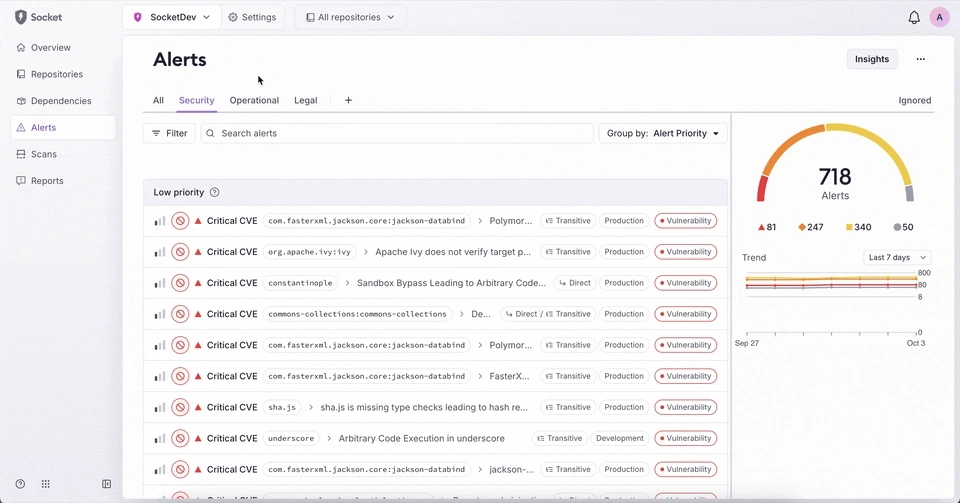
Manage Tabs Directly from the Alerts UI
Custom tabs are designed to be lightweight and easy to maintain.
From the alerts page, you can:
- Create new tabs from the current filter state
- Rename, duplicate, or delete existing tabs
- Save changes directly from the filter bar or the tab dropdown
There is no separate configuration screen. Everything happens where teams already work with alerts.
Visibility Across the Organization
Custom tabs are shared across the organization and persist across sessions. Once a tab is created, it becomes visible to all org members, ensuring everyone is looking at the same data through the same lens.
This makes custom tabs especially useful for:
- Standardizing alert triage workflows
- Aligning security and engineering on priority views
- Reducing confusion over which filters are in effect
To help avoid mistakes, the UI also shows a visual indicator when the current filters differ from the saved state of a tab. That makes it immediately clear when a view has been modified but not saved.
Built for How Teams Review Alerts
This feature grew out of how teams actually use the org alerts page. Most users do not want more alerts. They want faster ways to get to the right ones.
By letting teams name, save, and share alert views, custom tabs reduce friction in day-to-day triage without changing how alerts themselves work.
Custom tabs are available now on the org alerts page for Business and Enterprise plans.