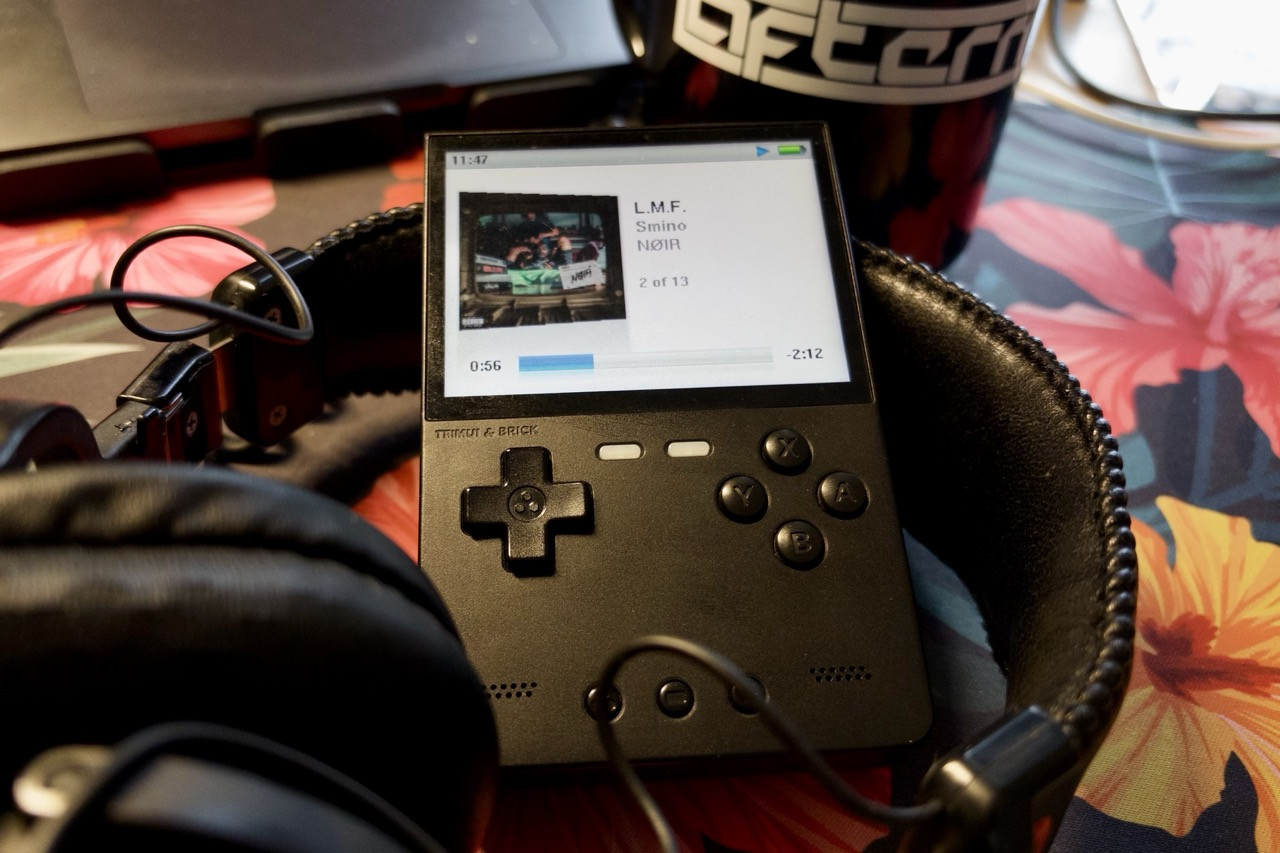
I’ve been obsessed with mp3 players recently, although the hobbyists in the space all refer to them as “DAPs” now which stands for Digital Audio Players… I guess because everyone wants to listen to FLAC files these days. That said, I’ve been looking into iPod modding, the history of the Zune, newer options like the Snowsky Echo Mini everyone seems to love, and generally figuring out which direction I want to head in as I begin divesting myself from music streaming services going into the new year.
If you’re reading this, you probably know I write about, [talk abou…
I’ve been obsessed with mp3 players recently, although the hobbyists in the space all refer to them as “DAPs” now which stands for Digital Audio Players… I guess because everyone wants to listen to FLAC files these days. That said, I’ve been looking into iPod modding, the history of the Zune, newer options like the Snowsky Echo Mini everyone seems to love, and generally figuring out which direction I want to head in as I begin divesting myself from music streaming services going into the new year.
If you’re reading this, you probably know I write about, talk about, and review gaming handhelds pretty frequently. The handheld scene is like any other super-niche tech hobby online — including the DAP scene, as it turns out — in that everyone is constantly trying to find something slightly better than the thing they already have and will argue about the specifics of each device until they’re blue in the face.
But because I have a bunch of devices lying around the apartment sitting in their boxes and waiting to be used for comparison videos or testing or whatever, I’m always glad to find alternative uses for them so they don’t just languish on my shelf like sad Toy Story characters.
So imagine my surprise when my two current obsessions met in the middle of a perfect Venn diagram: There’s a way to turn your gaming handheld into a DAP thanks to the work of some incredible open-source developers.
I made a shortform video about this and had a few people reach out asking how to do this on their own handhelds, so I thought I’d write up a little guide about it!
↑ Excerpt ↑
Here’s the big prerequisite: Your device needs to have access to Port Master. I’m a big fan of MuOS as a custom firmware for the devices which support it, and MuOS has Port Master ready to go as soon as you first boot it up. Russ over at Retro Game Corps has a good list of devices and firmwares which support Port Master as well, so check it out and see if yours is listed.
In this case, I used MuOS as my firmware on the TrimUI Brick.
Enter Rockbox
Once you have your firmware and Port Master all set to go, head over to their “Ready to Run Ports” section and download Rockbox. If your device doesn’t have wifi support, you can also just download it right from the Port Master website here and add it to your microSD card manually.
Rockbox is — wildly enough — custom firmware built for the iPod over twenty years ago used to unlock new features and themes for mp3 players. As noted by the Additional Information section on the Port Master page, you’ll also be able to download themes originally built for the iPod and apply them here if you want. But you don’t have to! Rockbox has a lot of themes available with extremely different looks, so definitely search around for the one that fits your vibe or your device best. That said, I went the iPod route because I find it deeply silly.
Once you have Rockbox installed, open it for the first time, then close out of it again. On the TrimUI Brick this means pressing the Home and Start buttons at the same time, but Start + Select or Start + R2 should also work on most devices.
Adding Music and Themes
Pop your microSD card out of the device and throw it in your computer. On the root of the card, add a “Music” folder and dump your music in there. I have mine arranged folder-wise as Artist → Album → Songs, which seems to work just fine. This is also the point where I’d recommend going to the Rockbox themes page and downloading the ones you find interesting. I’m using iClassic.
Put your card back into the device and navigate back to Rockbox. Highlight “Database” and press the Start button which will bring up a menu with “Select directories to scan” at the bottom. Select that and it’ll bring up a big list of files and folders. Scroll down to the folder labeled “mnt” then “mmc” which should bring you into your SD card’s files. Scroll down to the “Music” folder you created and select it twice, which should change the icon next to “Music” into a little play arrow icon. You want to make sure this is a play icon and not a plus icon, as the play icon denotes this as the folder Rockbox will be scanning every time it opens. Once you’ve made that selection, press B to back out of this menu and then select “Update Now.” Once this is done, close out of Rockbox again and open it up again. Selecting “Database” at this point should show you all of your music! Nice!
After this, head over to the “Settings” section and enter “Theme Settings” followed by “Browse Theme Files.” Select the theme you want to use and it should just swap seamlessly.
And now you’re good to go!
Definitely refer to the Port Master controls page to get a sense of how to navigate Rockbox if you find yourself lost, but from this point on it’s mostly self-explanatory.
Happy listening!
⏆
One additional note: As I start to get back into building a local music library up again, I’ve been experimenting with and exploring a lot of different options for music management, listening, and discovery. Unsurprisingly, there are some incredible apps out there for this these days. Expect to hear more about them in the future.