How to view translated lyrics in Apple Music

Wed Jan 28 2026, 11:04 PM EST · 2 minute read
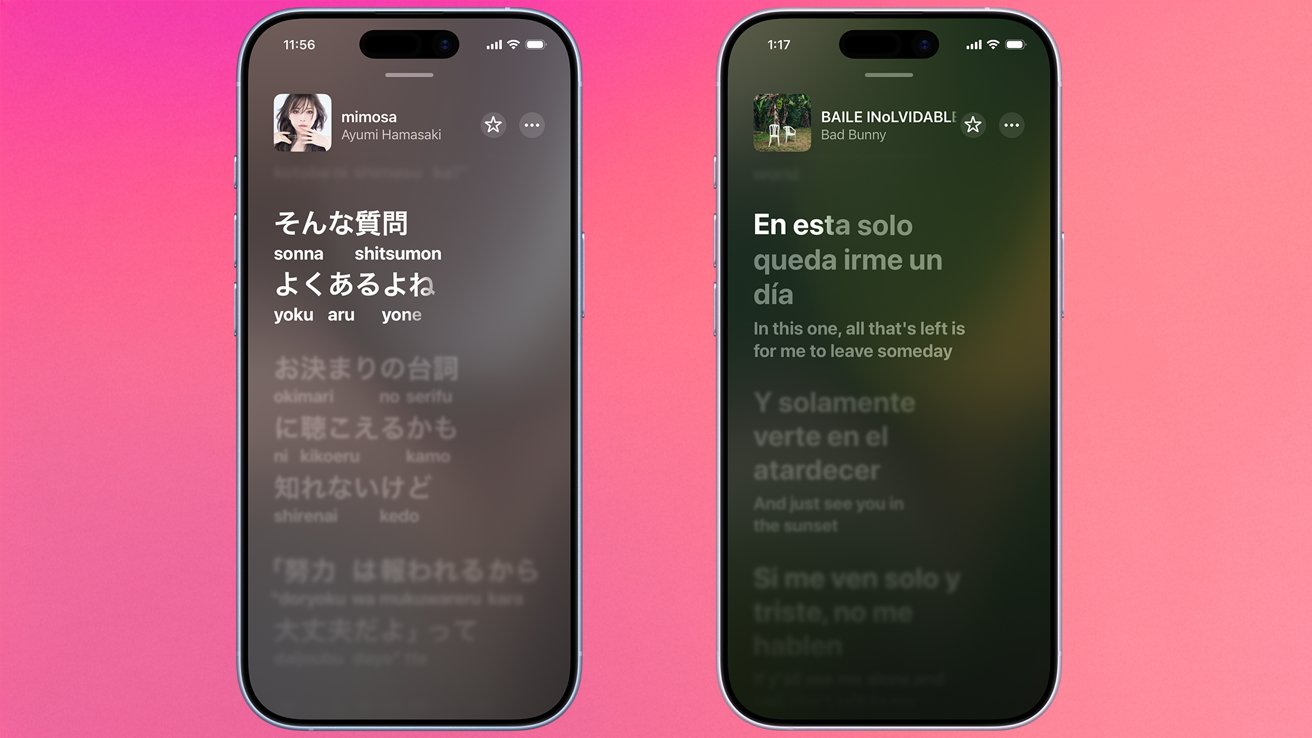
How to view Lyrics Pronunciation in Apple Music
Apple’s iOS 26 brought some new features to Apple Music. Here’s how to view both Lyric Translations and Lyric Pronunciation.
In iOS 26, Apple Music has gained a couple of pretty neat new features. While you’ve been able to view lyrics in Apple Music for a while now, the company has expanded the feature to offer Lyrics Pronunciation and Lyrics Translation.
If you’ve always wanted to sing along with your favor…
How to view translated lyrics in Apple Music
Wed Jan 28 2026, 11:04 PM EST · 2 minute read
How to view Lyrics Pronunciation in Apple Music
Apple’s iOS 26 brought some new features to Apple Music. Here’s how to view both Lyric Translations and Lyric Pronunciation.
In iOS 26, Apple Music has gained a couple of pretty neat new features. While you’ve been able to view lyrics in Apple Music for a while now, the company has expanded the feature to offer Lyrics Pronunciation and Lyrics Translation.
If you’ve always wanted to sing along with your favorite foreign songs, Apple Music has got your back. Lyrics Pronunciation will offer phonetic guides to make it easier to sing without needing to know a foreign language.
And if you’ve always been curious about the meaning of your favorite foreign songs, Lyric Translations is right up your alley. Apple Music will show you line-by-line translations, helping you feel even more connected to your music.
Before we get started, it’s a good idea to get a quick refresher on how to find any lyrics of any kind in the first place.
How to view lyrics in Apple Music on iPhone, iPad, and Mac
- On your Apple device, open Apple Music
- Locate the song you wish to see the lyrics for
- Tap or click on the song
- On the bottom near the controls, tap the Lyric button — it looks like a quotation mark in a speech bubble
For many songs, time-synced lyrics will show up. For some songs, especially popular songs released in the last few years, you’ll even get karaoke-style lyrics that highlight with the correct pacing.
Not every song has time-synced lyrics, though. Some may simply list the lyrics, while others may not have lyrics available to view at all.
Switching between Lyrics Translation and Lyrics Pronunciation
Now that we’re familiar with the interface, you can experiment with singing along to foreign music with Lyrics Pronunciation. Here’s how to do it.
Important: Viewing Lyrics Pronunciation and Lyric Translation is exclusive to iPhone or iPad. You cannot view either on Apple TV or on Apple Music for macOS.
View lyric pronunciation or translation on iPhone or iPad
- On your iPhone or iPad, open Apple Music
- Locate the song you wish to see phonetic guides for
- Tap or click on the song
- On the bottom near the controls, tap the Lyric button — it looks like a quotation mark in a speech bubble
- By default, if there are phonetic guides for transcribed, time-synced lyrics, they will be displayed under it
- To switch to translated lyrics, tap the translation button on the left side of the Apple Music controls
- Tap Show Translation
Now you can find out the meaning behind your favorite songs, or even sing along without needing to know the language.
Not every song has phonetic pronunciation guides, nor does every song have translations available. Translations use the Preferred Languages on your iPhone or iPad.