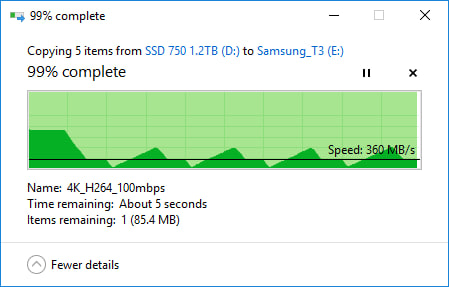
Windows’ built-in copy function works well enough for small files. Problems start when transfers involve tens or hundreds of gigabytes, or thousands of files. At that point, File Explorer often slows to a crawl, stalls on "Calculating time remaining," or fails partway through with little clarity on what actually copied.
The issue is not storage speed. It is how File Explorer handles large transfers. Before copying begins, Windows tries to enumerate every file and estimate total size and time. On large directories, this pre-calculation alone can take minutes or longer, and the estimates remain unreliable throughout the process.
Error handling is anothe…
Windows’ built-in copy function works well enough for small files. Problems start when transfers involve tens or hundreds of gigabytes, or thousands of files. At that point, File Explorer often slows to a crawl, stalls on "Calculating time remaining," or fails partway through with little clarity on what actually copied.
The issue is not storage speed. It is how File Explorer handles large transfers. Before copying begins, Windows tries to enumerate every file and estimate total size and time. On large directories, this pre-calculation alone can take minutes or longer, and the estimates remain unreliable throughout the process.
Error handling is another weak point. If one file is locked or unreadable, Explorer frequently pauses the entire operation and waits for user input. In some cases, the transfer aborts, leaving a partially copied directory with no built-in way to verify what succeeded. Resume support exists, but re-verification is slow and inefficient, especially across external or network drives.
Explorer also assumes success equals integrity. It does not verify copied data with checksums. For backups, archives, or large media files, this means silent corruption can go unnoticed until the file is opened later.
For large or critical transfers, command-line tools are more reliable. Windows includes Robocopy (Robust File Copy), which is designed for bulk data movement and directory mirroring. It avoids GUI overhead, supports retries, logs every action, and can resume interrupted transfers cleanly.
Robocopy also allows multithreaded copying, making it far more efficient when dealing with thousands of small files. Options exist to control retry counts, wait times, and behavior when files are locked. For backups or migrations, it can mirror directories exactly, reducing human error.
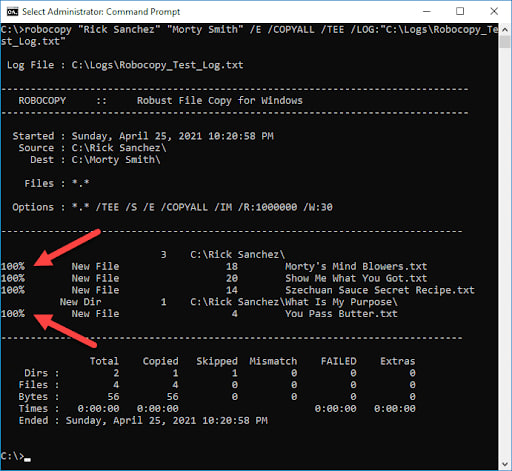
A simple example looks like this:
robocopy D:\Source E:\Backup /MIR /R:3 /W:5 /MT:8
This mirrors one folder to another, retries failed files three times, waits five seconds between retries, and uses multiple threads.
Robocopy is not risk-free. A wrong flag, especially with mirroring, can delete data at the destination. Users should test commands on non-critical folders first and read output logs carefully.
For occasional small transfers, File Explorer remains fine. For professionals, content creators, or anyone regularly moving large datasets, relying on Explorer alone is asking for delays and uncertainty. Command-line tools trade convenience for control, but they finish transfers predictably and leave an audit trail when something goes wrong.
Summary
Article Name
Why Windows File Copy Struggles With Large Files, and What Works Better
Description
Windows File Explorer struggles with large file transfers due to poor estimation and error handling, while tools like Robocopy offer faster, restartable, and more reliable alternatives.
Author
Arthur K
Publisher
Ghacks Technology News
Logo
