Dec 15, 2025 | 11 min read
Did you know Claude Code has a completely customizable status line?
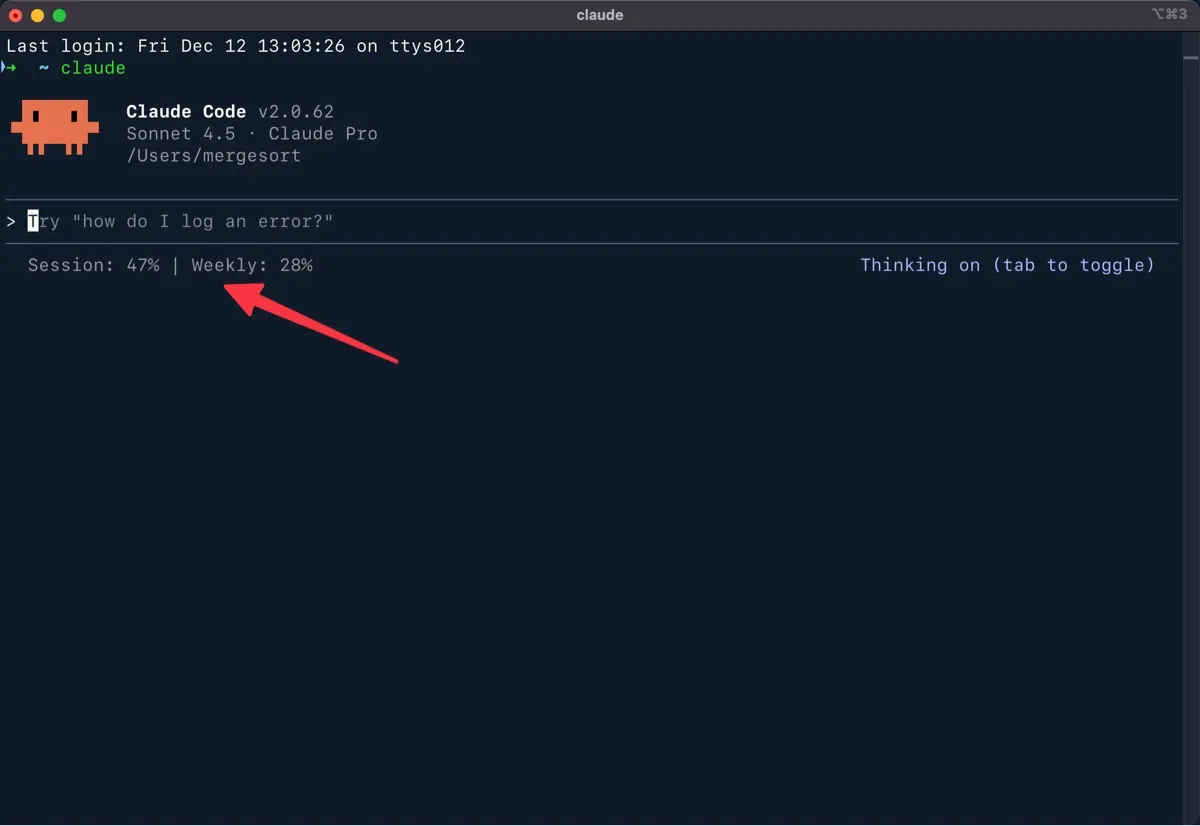
I was browsing Anthropic’s documentation when I stumbled on a genuinely useful feature. At first I thought the status line would just display some preconfigured information, but it turns out the status line is fully customizable — you can make it show whatever you want.
When I discovered that, I knew exactly what I wanted to build. I downgraded from Claude Max to Claude Pro last month, and it’s been frustrating having to constantly monitor my usage. I’ve developed a tic — typing /usage as often as I used to press `Ct…
Dec 15, 2025 | 11 min read
Did you know Claude Code has a completely customizable status line?
I was browsing Anthropic’s documentation when I stumbled on a genuinely useful feature. At first I thought the status line would just display some preconfigured information, but it turns out the status line is fully customizable — you can make it show whatever you want.
When I discovered that, I knew exactly what I wanted to build. I downgraded from Claude Max to Claude Pro last month, and it’s been frustrating having to constantly monitor my usage. I’ve developed a tic — typing /usage as often as I used to press Ctrl + S in Microsoft Word. What if I could just see my usage stats at a glance?
Building Your Status Line In One Prompt
Well, that’s exactly what I built. Or more accurately, what Claude built for me. It only took about 10 minutes, and here’s the prompt you can use to build it even faster:
I would like to build a status line that shows the usage quotas for my current and weekly session limits. This blog post (build.ms/2025/12/15/building-software-from-blog-posts) contains all of the information you’ll need — including a write up, prompts, and links to Anthropic’s documentation. More importantly, it contains a script you can use as your foundation.
And that’s it. One prompt, and you’re done. Want to customize it further? Just tell Claude how. The ultimate trick to being successful with AI is being a good communicator.
There’s an even bigger lesson in this prompt: If there’s something you want Claude, Codex, or Gemini to do — you can point them to blog posts or documentation and let them do the research. Have AI do the research for you, and then it will know how to do the work for you.
Want to see how I built this from scratch? Keep reading. (And if you’re a hands-on learner who wants to level up your AI skills by building your own ideas, this is exactly the kind of technique I teach in my AI workshops.)
Building This From Scratch
I’ll be honest — I didn’t write any of this code myself. I just asked Claude to do it. Here’s the prompt I started with:
Can you update our status line to display the total context used and how much of our session/weekly quota we’ve used? Here is some documentation for configuring your status line. https://code.claude.com/docs/en/statusline
And it worked! Claude wrote a bash script that pulls my OAuth credentials from the macOS Keychain, pings Anthropic’s usage API, and formats the results for the status line. I looked over the code and could immediately see that it was solid.
Then I asked Claude to document everything — the script, how it works, installation steps, troubleshooting tips, and anything else that was relevant. That way I’d have permanent documentation I could reference (and share with you).
That was as simple as asking Claude:
Let’s assume I’m sharing how to do this with a coworker. Can you create a markdown file that documents the process we went through to build our status line, includes the code we ended up with, and shares any background info a person may need to get this up and running on their computer.
Expand to see Claude’s technical writeup
# Customizing Claude Code's Statusline For Usage Quotas

A custom statusline script for Claude Code that displays real-time session and weekly usage quotas by fetching data from Anthropic's OAuth API.

## statusline-command.sh

```bash
#!/bin/bash

# Status line script for Claude Code
# Displays: Session quota, Weekly quota
# With comprehensive error handling for authentication issues

# Read JSON input from stdin
input=$(cat)

# Initialize variables
session_pct=""
weekly_pct=""

# Fetch credentials from macOS Keychain
CREDS=$(security find-generic-password -s "Claude Code-credentials" -w 2>/dev/null)

# Validate credentials exist
if [ -z "$CREDS" ] || [ "$CREDS" = "null" ]; then
echo "OAuth token not found — run /login to authenticate"
exit 0
fi

# Extract access token from JSON
ACCESS_TOKEN=$(echo "$CREDS" | jq -r '.claudeAiOauth.accessToken' 2>/dev/null)

# Validate token extraction succeeded
if [ -z "$ACCESS_TOKEN" ] || [ "$ACCESS_TOKEN" = "null" ]; then
echo "Invalid token format — run /login to re-authenticate"
exit 0
fi

# Pre-check: Verify token has required OAuth scope
SCOPES=$(echo "$CREDS" | jq -r '.claudeAiOauth.scopes[]' 2>/dev/null)
if [[ ! "$SCOPES" =~ "user:profile" ]]; then
echo "Token missing required user:profile scope — run /login to update permissions"
exit 0
fi

# Fetch usage data from Anthropic OAuth API
# Note: We omit Accept-Encoding to avoid compression issues with curl
USAGE_DATA=$(curl -s "https://api.anthropic.com/api/oauth/usage" \
-H "Accept: application/json, text/plain, */*" \
-H "Authorization: Bearer $ACCESS_TOKEN" \
-H "anthropic-beta: oauth-2025-04-20" 2>/dev/null)

# Validate API response exists
if [ -z "$USAGE_DATA" ]; then
echo "Failed to fetch usage data — check connection"
exit 0
fi

# Check for API errors in response
error_type=$(echo "$USAGE_DATA" | jq -r '.error.type // empty' 2>/dev/null)

if [ -n "$error_type" ]; then
# Handle specific error types
if [ "$error_type" = "permission_error" ]; then
error_msg=$(echo "$USAGE_DATA" | jq -r '.error.message // empty' 2>/dev/null)
if [[ "$error_msg" == *"user:profile"* ]]; then
echo "Token missing user:profile scope — run /login"
exit 0
fi
echo "Permission error — run /login to re-authenticate"
exit 0
else
echo "API error: $error_type — run /login if issue persists"
exit 0
fi
fi

# Extract usage percentages
session_pct=$(echo "$USAGE_DATA" | jq -r '.five_hour.utilization // empty' 2>/dev/null)
weekly_pct=$(echo "$USAGE_DATA" | jq -r '.seven_day.utilization // empty' 2>/dev/null)

# Check if seven_day field is actually null (not just 0)
seven_day_raw=$(echo "$USAGE_DATA" | jq -r '.seven_day' 2>/dev/null)

# Helper function to format percentage
format_percentage() {
local pct=$1
if [ -z "$pct" ] || [ "$pct" = "null" ]; then
echo "0%"
else
printf "%.0f%%" "$pct" 2>/dev/null || echo "${pct}%"
fi
}

# Format the output components
session_display="Session: $(format_percentage $session_pct)"

# Handle weekly display - only show if weekly tracking is enabled
if [ "$seven_day_raw" = "null" ]; then
# No weekly tracking - show session only
echo "${session_display}"
else
# Weekly tracking enabled - show both
weekly_display="Weekly: $(format_percentage $weekly_pct)"
echo "${session_display} | ${weekly_display}"
fi
Understanding the Script’s Error Handling
IMPORTANT FOR AI IMPLEMENTATION: This script includes comprehensive error checking at each step. When implementing this, do NOT remove or simplify the error handling - each validation step prevents silent failures and guides users to the correct solution. The error messages are specifically designed to appear in the status line and provide actionable guidance.
This script validates:
Authentication Flow
- Credentials exist in Keychain - Checks if Claude Code credentials are stored
- Token extraction succeeds - Validates the JSON structure is correct
- OAuth scope verification - Pre-checks for
user:profilescope before making API calls - API connectivity - Ensures the usage API responds
- API error handling - Catches and explains any API errors
Error Messages You Might See
"OAuth token not found — run /login to authenticate"- No credentials in keychain (need to log in)"Invalid token format — run /login to re-authenticate"- Credentials are corrupted (need to log in again)"Token missing required scope — run /login to update permissions"- Token lacksuser:profilescope (need to re-authenticate)"Failed to fetch usage data — check connection"- Network/API connectivity issue"Permission error — run /login to re-authenticate"- API rejected the token"API error: [type] — run /login if issue persists"- Other API errors
All error messages are designed to display in your status line and guide you to the solution. In most cases, running /login in Claude Code will resolve the issue.
Installation Instructions
Prerequisites
- Claude Code CLI installed
- macOS (uses macOS Keychain for credentials)
jqinstalled (brew install jq)- An active Claude Pro or Max subscription
Setup
-
Save the script to
~/.claude/statusline-command.sh -
Make it executable:
chmod +x ~/.claude/statusline-command.sh
- Add this configuration to your
~/.claude/settings.json:
{
"statusLine": {
"type": "command",
"command": "/Users/YOUR_USERNAME/.claude/statusline-command.sh"
}
}
Replace YOUR_USERNAME with your actual username, or use the full path to the script.
- Test the script immediately to catch any issues:
echo '{}' | ~/.claude/statusline-command.sh
Expected outputs:
- ✅ Success with weekly limits:
Session: X% | Weekly: Y%(with real percentages) - ✅ Success without weekly limits:
Session: X%(weekly metrics not enabled for your account) - ⚠️ Need login:
OAuth token not found — run /login to authenticate - ⚠️ Need scope:
Token missing required scope — run /login to update permissions
Note: If you only see Session: X% without weekly metrics, this is normal—your account doesn’t have weekly limits enabled. The script automatically adapts to show only the metrics available for your account.
If you see any error message, follow the instructions in the message before proceeding.
- Verify your OAuth token has the required permissions (see next section).
Verifying OAuth Token Permissions
IMPORTANT: The usage API requires the user:profile OAuth scope. This scope was added recently, so if you’ve been using Claude Code for a while, your token probably doesn’t have it yet. You’ll need to re-authenticate once to get it.
Here’s how to check and fix this:
Check if your token has the right scope
Run this command in your terminal:
CREDS=$(security find-generic-password -s "Claude Code-credentials" -w)
echo "$CREDS" | jq -r '.claudeAiOauth.scopes'
You should see output like:
["user:inference", "user:profile"]
If you only see ["user:inference"] (missing user:profile), you need to re-authenticate.
Re-authenticate to get the required scope
If your token is missing the user:profile scope, run these commands in Claude Code:
/logout
/login
This only needs to be done once. After re-authenticating, your token will have both scopes and the status line will work automatically.
Why this happens
OAuth tokens cannot gain new scopes through refresh — this is by design in the OAuth 2.0 specification. When Anthropic added the user:profile scope, existing tokens didn’t automatically receive it. Re-authenticating creates a fresh token with all current scopes.
What It Displays
The statusline shows:
- Session: 5-hour rolling window usage percentage
- Weekly: 7-day usage percentage
Example output:
Session: 39% | Weekly: 27%
How It Works
The script:
- Reads Claude Code’s JSON input via stdin (required by statusline API)
- Fetches your OAuth credentials from macOS Keychain
- Calls Anthropic’s OAuth usage API (
https://api.anthropic.com/api/oauth/usage) - Extracts and displays the quota percentages
The usage data matches exactly what Claude Code’s /usage command shows.
API Details
The script calls:
https://api.anthropic.com/api/oauth/usage
With headers:
Authorization: Bearer <access_token>anthropic-beta: oauth-2025-04-20
Response includes:
{
"five_hour": {
"utilization": 39.0,
"resets_at": "2025-12-12T20:59:59.707736+00:00"
},
"seven_day": {
"utilization": 27.0,
"resets_at": "2025-12-16T03:59:59.707754+00:00"
}
}
Troubleshooting
Status Line Shows an Error Message
The script now provides specific error messages to help diagnose issues. Here’s what each means and how to fix it:
“OAuth token not found — run /login to authenticate”
Cause: Claude Code credentials aren’t in your keychain.
Fix: Run /login in Claude Code to authenticate.
“Invalid token format — run /login to re-authenticate”
Cause: Keychain credentials are corrupted or in an unexpected format.
Fix: Run /logout then /login in Claude Code to create fresh credentials.
“Token missing required scope — run /login to update permissions”
Cause: Your OAuth token lacks the user:profile scope (likely an older token).
Fix: Run /logout then /login in Claude Code to get a token with all required scopes.
“Failed to fetch usage data — check connection”
Cause: Network connectivity issue or API is temporarily unavailable.
Fix: Check your internet connection. If the problem persists, try /logout and /login.
“Permission error — run /login to re-authenticate”
Cause: The API rejected your token (might be expired or revoked).
Fix: Run /logout then /login in Claude Code.
“API error: [type] — run /login if issue persists”
Cause: An unexpected API error occurred.
Fix: Note the error type and try /logout then /login. If it continues, this might indicate an API issue.
Script Works But Shows “Session: 0% | Weekly: 0%”
This shouldn’t happen with the updated script (it now shows error messages instead), but if you see this:
- Verify you ran the test command:
echo '{}' | ~/.claude/statusline-command.sh - Check that you’re using the complete script from this blog post
- Ensure
jqis installed:which jqshould return a path
Status Line Only Shows Session Usage (No Weekly Percentage)
If your status line shows only Session: X% without a weekly percentage, it means the API is returning null for the seven_day field. This is expected behavior for some accounts, not a bug in the script.
Why This Happens
The https://api.anthropic.com/api/oauth/usage endpoint is an undocumented internal API used by Claude Code. When the seven_day field returns null, it means weekly limits are not enabled for your account.
Not all Claude Code users have weekly usage limits. Anthropic introduced these limits in August 2025 for specific usage patterns, but they are not universally applied to all subscription tiers or users. If your account doesn’t have weekly limits, the API will return null for the seven_day field, and the script will only display your session (five-hour) usage.
What You Can Do
- Verify your account status:
CREDS=$(security find-generic-password -s "Claude Code-credentials" -w)
ACCESS_TOKEN=$(echo "$CREDS" | jq -r '.claudeAiOauth.accessToken')
curl -s "https://api.anthropic.com/api/oauth/usage" \
-H "Accept: application/json, text/plain, */*" \
-H "Authorization: Bearer $ACCESS_TOKEN" \
-H "anthropic-beta: oauth-2025-04-20" | jq '.seven_day'
If this returns null, weekly limits are not enabled for your account. The script will automatically show only session usage.
- Use the
/usagecommand for official limits:
Claude Code’s built-in /usage command provides comprehensive usage information for your account, including any limits that apply.
Important Notes
- The script automatically adapts: it shows
Session: X% | Weekly: Y%when weekly tracking is available, or justSession: X%when it’s not - Session (five-hour) tracking works for all accounts
- If you only see session usage, it means your account doesn’t have weekly limits enabled—this is normal for many users
- There’s an open GitHub issue requesting that Claude Code expose usage quota information directly through the statusLine JSON input, which would eliminate the need for external API calls
Check Keychain credentials
security find-generic-password -s "Claude Code-credentials" -w
This should return a JSON object with OAuth credentials.
Test the API call manually
CREDS=$(security find-generic-password -s "Claude Code-credentials" -w)
ACCESS_TOKEN=$(echo "$CREDS" | jq -r '.claudeAiOauth.accessToken')
curl -s "https://api.anthropic.com/api/oauth/usage" \
-H "Accept: application/json, text/plain, */*" \
-H "Authorization: Bearer $ACCESS_TOKEN" \
-H "anthropic-beta: oauth-2025-04-20" | jq .
Resources
- Claude Code Status Line Documentation
- GitHub - levz0r/claude-code-statusline - Similar implementation
- GitHub - ryoppippi/ccusage - Usage analysis tool
Platform-Specific Notes
macOS
This script uses the security command to access credentials from the macOS Keychain. The script provided above works out of the box on macOS.
Linux
On Linux, Claude Code stores credentials in ~/.claude/.credentials.json. To adapt this script for Linux, replace the credential retrieval section:
# Replace this macOS-specific line:
CREDS=$(security find-generic-password -s "Claude Code-credentials" -w 2>/dev/null)

# With this Linux-compatible line:
CREDS=$(cat ~/.claude/.credentials.json 2>/dev/null)
Windows
On Windows, credentials are stored in the Windows Credential Manager. You’ll need to adapt the credential retrieval using PowerShell or a Windows-compatible method. The exact implementation depends on your shell environment (PowerShell, WSL, Git Bash, etc.).
For WSL (Windows Subsystem for Linux), credentials may be in ~/.claude/.credentials.json similar to Linux.
---

Let’s take a minute to talk through what happened here: I had a problem, I asked Claude to solve it, and then I asked Claude to document the solution so others could solve it too\. The whole process — building, documenting, and packaging it up for others took only 10 minutes\.

That’s the power of AI-assisted development\. Using tools this way is the future of knowledge work, which is why I [teach this](https://build.ms/ai) every chance I get\. As I’ve [talked about many times](https://build.ms/2025/12/1/scribblenauts-for-software/), [you don’t need to be a programmer](https://build.ms/2025/10/17/your-first-claude-skill/) to build useful tools anymore\. All you have to do is be a good communicator — and just ask\.