If your web application is live on the internet, it’s being scanned for vulnerabilities right now. It’s not a matter of if, but when it will be targeted by an automated bot or a real attacker.
A Web Application Firewall (WAF) is one of the fastest and most effective ways to protect it. But are they expensive? Are they hard to set up?
Not at all. In this guide, we’ll install SafeLine, a powerful and free WAF, on an Ubuntu . Then, we’ll do the fun part: we’ll launch real web attacks (like SQL Injection) at our app to watch the WAF block them in real-time.
What We Cover Here
- Setting up SafeLine WAF on Ubuntu : Step-by-step instructions to install and configure SafeLine Web Application Firewall on an Ubuntu machine, ...
If your web application is live on the internet, it’s being scanned for vulnerabilities right now. It’s not a matter of if, but when it will be targeted by an automated bot or a real attacker.
A Web Application Firewall (WAF) is one of the fastest and most effective ways to protect it. But are they expensive? Are they hard to set up?
Not at all. In this guide, we’ll install SafeLine, a powerful and free WAF, on an Ubuntu . Then, we’ll do the fun part: we’ll launch real web attacks (like SQL Injection) at our app to watch the WAF block them in real-time.
What We Cover Here
- Setting up SafeLine WAF on Ubuntu : Step-by-step instructions to install and configure SafeLine Web Application Firewall on an Ubuntu machine, including integration with Apache web server.
- Conducting simulated web attacks to test WAF protection: How to perform common web attacks like Cross-Site Scripting (XSS) and SQL Injection against your protected web application to verify SafeLine’s blocking and logging capabilities.
- Forwarding SafeLine logs to a SIEM system : Methods to configure log forwarding from SafeLine to your SIEM platform (Splunk), enabling centralized log collection and analysis.
- Creating custom alerts in the SIEM for real-time attack detection : Guidance on setting up custom alert rules in the SIEM based on SafeLine logs, to detect and respond security threats.
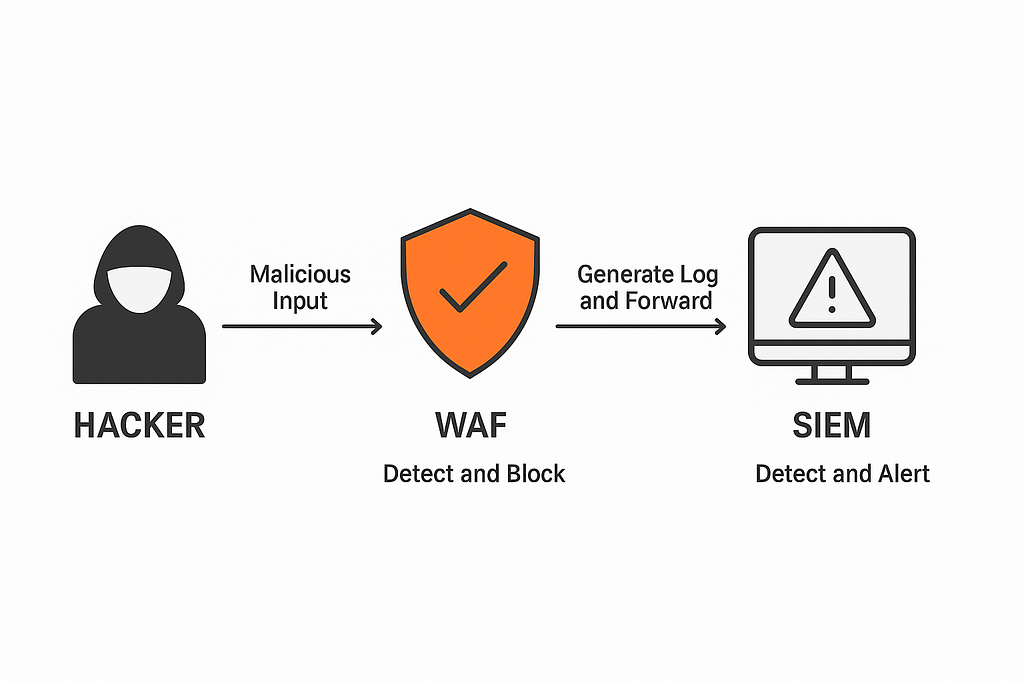
What is WAF?
A Web Application Firewall (WAF) is a security tool that protects websites from attacks like XSS and SQL injection. It watches the traffic coming to the website and blocks anything that looks harmful. This helps keep the website safe from hackers and bad traffic.
Safeline
SafeLine is a specific WAF tool used to protect websites. Unlike other WAFs, SafeLine is designed to be easy to install, lightweight, and etc . It comes with predefined rules to detect web attacks like SQL injection and XSS, etc.

In this write-up, we use SafeLine because
- It’s free to use.
- It supports custom rules.
- It logs detailed info about attacks, which we can send to a SIEM.
- It works well on local web servers like Apache.
Safeline WAF Installation on Ubuntu
Update and install curl
sudo apt update sudo apt-get install curl -y
Run safeline installation script
sudo bash -c "$(curl -fsSLk https://waf.chaitin.com/release/latest/manager.sh)" -- --en
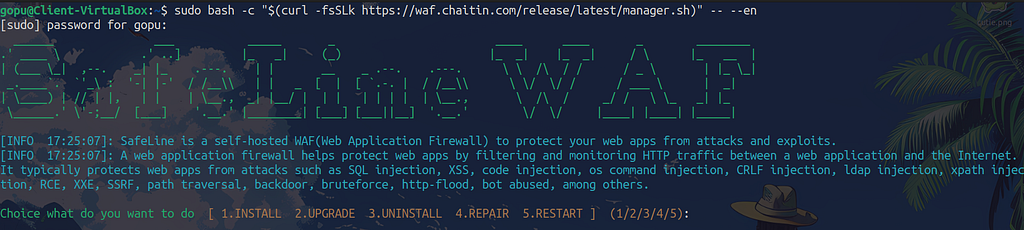
enter 1
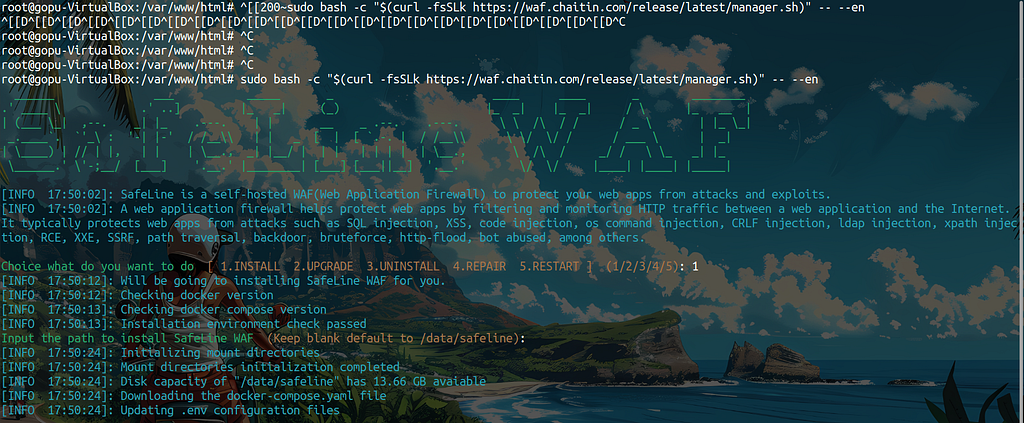
The installation takes about 5 to 10 minutes. Once it’s complete, it will display the username, password, and the access URL.

Use the URL to open the login page. Enter the username and password that were provided earlier. Once done, you will be able to access the Safeline WAF web interface.
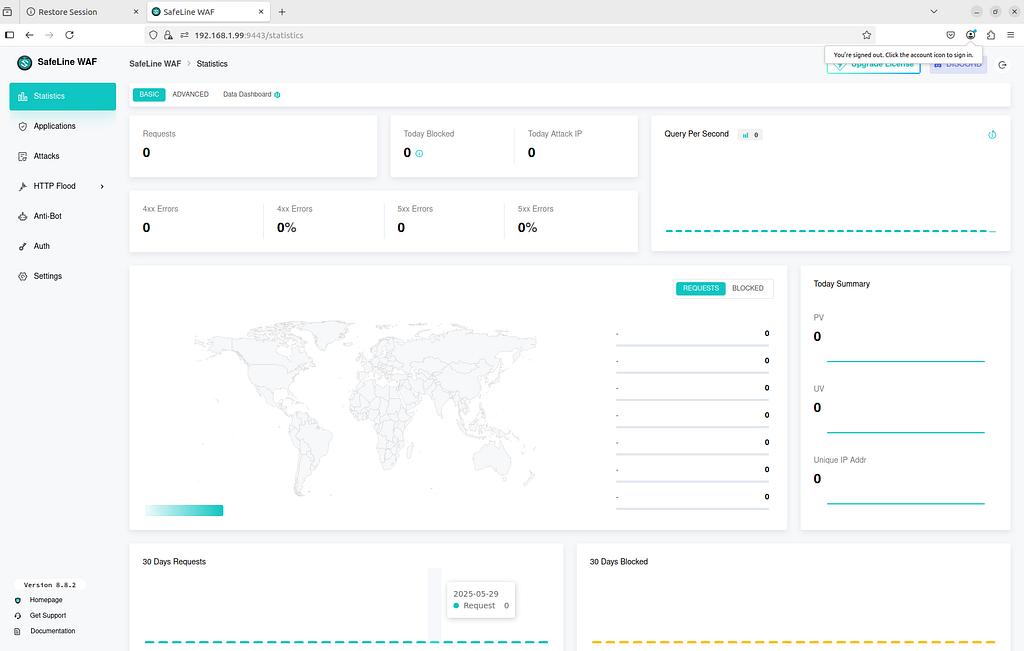
Add Your web application
- Go to the “Application” tab.
- Click “Add Application”.
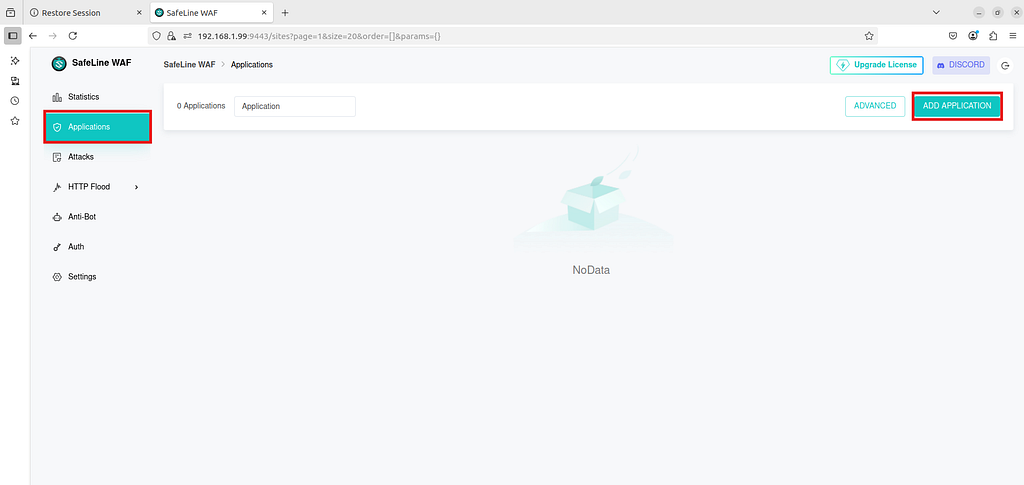
“Before filling in the information, let me share some details about my website. It is running on an Ubuntu using Apache and can only be accessed by devices within the same network. The website is hosted on IP address 192.168.1.99 and is listening on port 81. I have mapped the IP to the hostname secure-lab in the /etc/hosts file. Although you can host a publicly accessible website, I am following these steps purely for testing and learning purposes.”
Fill in the following details
- Domain : You can give your web site domain name or it ip address
- Port : 80
- Click Reverse Proxy
- Upstream: Enter the IP address and port where your website is running (e.g., http://192.168.1.99:81)
- Application Name: Provide a name (e.g., Vulnweb)

- Submit
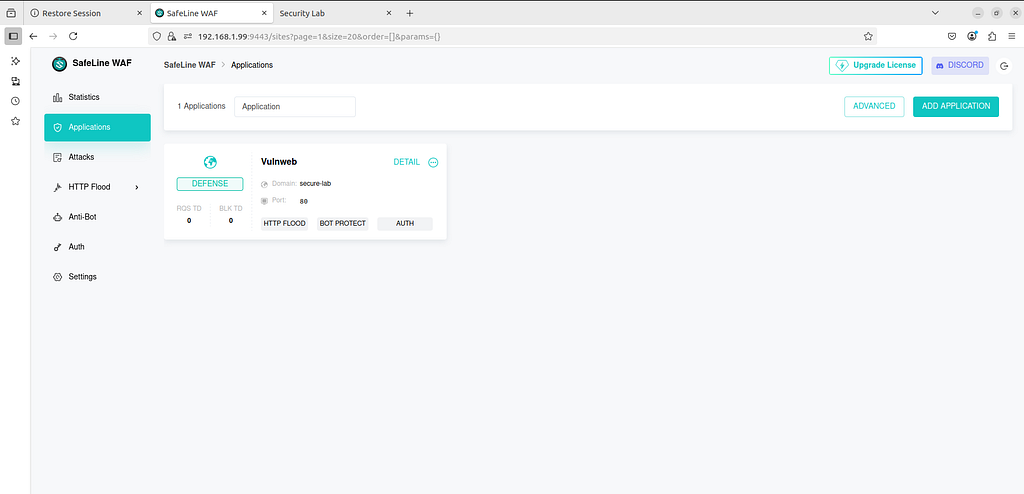
Test Malicious Requests
Now, access your website and enter a test SQL injection in the URL
http://yourwebsite/index.php?id=1' OR '1'='1
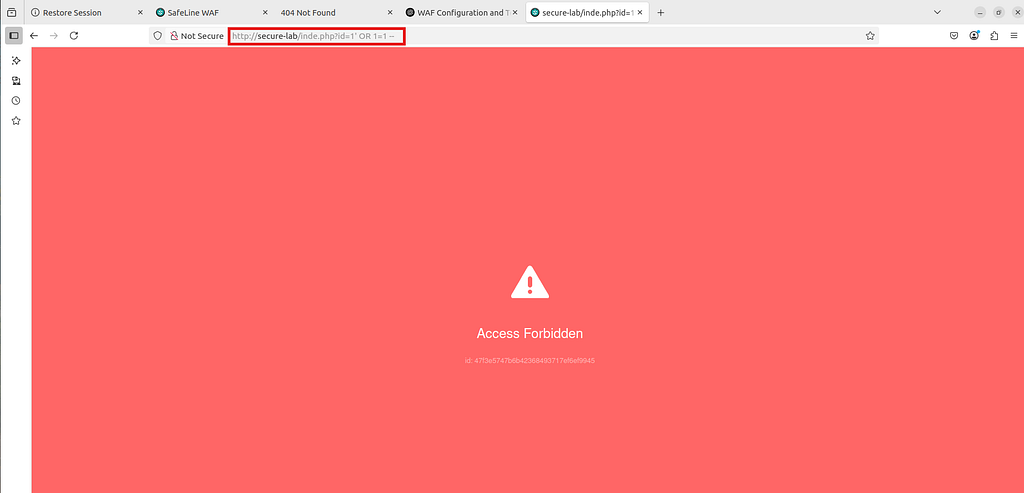
Now you can see the ‘Access Forbidden’ message this means the WAF is working.
You can also go to the WAF interface, then navigate to Attacks → Log to view the recorded attack logs.
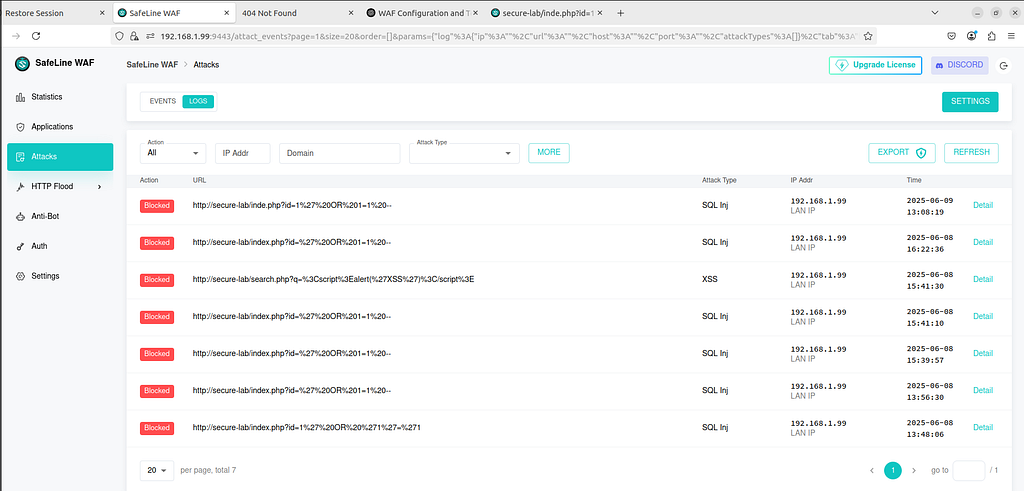
With that simple ‘Access Forbidden’ message, you’ve confirmed it: your web application is no longer an easy target. You have successfully installed a WAF, configured it to protect your site, and proven that it actively blocks common, high-risk attacks.
You’ve made your app safer, but as a defender, your job is only half-done. Blocking an attack is good; knowing you blocked it is better.
A Practical Guide to SafeLine: Setting Up a WAF and Testing It With a Real SQL Injection Attack was originally published in InfoSec Write-ups on Medium, where people are continuing the conversation by highlighting and responding to this story.