Some fresh macOS tips from a long-time PC user
Updated: January 16, 2026
Apart from a short stint with Commodore 64 and ZX Spectrum, I’ve been a PC user my whole life. Until late 2025, I’ve never used the Mac. Not even once. And now that I have gotten meself a nice device, there’s 30+ years worth of muscle memory and productivity optimization working against the Mac usage paradigm. Every time my fingers touch the keyboard, something strange happens.
I have two options before me. Adapt to the Apple way of doing things, or try to make the Macbook behave more like a Windows/Linux system. My choice is the latter. I’m still an active user of those two operating systems, and, in a way, the majority wins. Also, if there’s…
Some fresh macOS tips from a long-time PC user
Updated: January 16, 2026
Apart from a short stint with Commodore 64 and ZX Spectrum, I’ve been a PC user my whole life. Until late 2025, I’ve never used the Mac. Not even once. And now that I have gotten meself a nice device, there’s 30+ years worth of muscle memory and productivity optimization working against the Mac usage paradigm. Every time my fingers touch the keyboard, something strange happens.
I have two options before me. Adapt to the Apple way of doing things, or try to make the Macbook behave more like a Windows/Linux system. My choice is the latter. I’m still an active user of those two operating systems, and, in a way, the majority wins. Also, if there’s a way, then why not. If macOS lets me implement a few simple changes that will make my life immediately better, I want to try them. In this guide, I will outline a bunch of tweaks and tricks for Windows and Linux converts with ingrained reflexes. Let us commence.
Modifier keys
If you’re a Windows/Linux user, then you’re used to Ctrl + X/C/V as your cut/copy/paste setup. Likewise, the Super key will most likely open a system menu, and the Fn key (if present) can be used to activate various secondary Fn key functions. On a typical laptop, these could be brightness or volume keys perhaps. Alternatively, you will use the keys to refresh the desktop, rename a file and such.
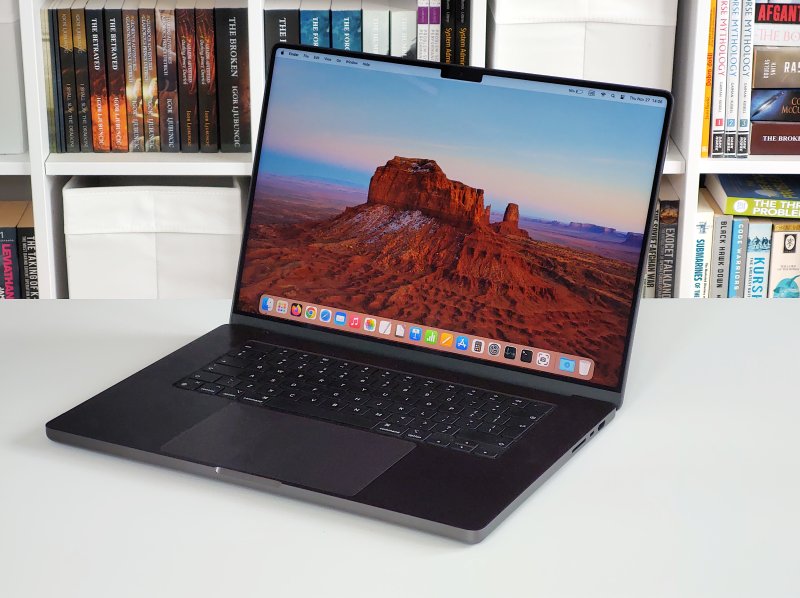
In macOS, the usage is quite different. Moreover, the keys are arrayed differently. For example, on my standard laptop like the Executive, the bottom left row of keys starts with Ctrl, Fn, Super, Alt, Space. On the Macbook, the keys are arrayed as follows: Fn, Ctrl, Opt, Cmd, Space.
So how do you use those now? Or map to your expected usage? Ah.
I found the Cmd + C/V option quite hard to execute. For one, if you have a normal-sized hand, the Cmd button is way too close to the actual letters. So doing the keyboard shortcut is hard, even if you have no problem with muscle memory drawing your pinkie out toward Fn (where you expect to feel Ctrl).

Luckily, it is possible to do some elegant remapping. My final (or almost final) setup is as follows. The outermost button, the Globe is set as Command (Cmd), which is equivalent to the Windows Ctrl. The second, the one labeled Control is set as Control (Fn). The third is Option, and it should do what Super does in Windows, ergo Globe function. Lastly, the one labeled Command becomes Windows Alt (modifier, ergo Option). This feels quite tricky, even reading.
The mapping is as follows, if you will, mathematically:
Position Label Function
1 Globe (Fn) Command 2 Control Control 3 Option Globe 4 Command Option
Thus, the actual swap pattern is:
1 -> 4 2 -> 2 3 -> 1 4 -> 3
Seems to do the job okayish, so far. My fingers feel better. Sweet.
Fn keys as standard function keys
I don’t like Fn keys doing brightness, volume or alike by default. Luckily, there’s a toggle for that.

Some useful shortcuts
I changed a number of common keyboard combos, as I want to be able to use my system in a way that won’t interfere with the Windows/Linux patterns. Thus, Cmd + F1 invokes Launchpad. And by Cmd, I mean the remapped first left key on the bottom row, which bears the Globe (Fn) logo.
Globe + D can be used as Delete, as there’s no physical key. Quite useful for writing text. This won’t work for file deletion, but you can use Cmd +Backspace to remove files or folders. Similarly, Cmd + Option + V acts as Cut/Paste rather than Copy/Paste.
Issues remain ...
While the above address some of the inconsistencies with the keyboard usage, I still miss a bunch of Windows-like actions. I’d like to be able to invoke Launchpad with just the "Super" key, and there’s no minimize all to desktop (which usually goes under Super + D). The same applies to screen lock, folder refresh, or file/folder rename. The Super + L, F5 and F2 are missing, and this hurts my productivity. But, we shall explore more, right.
Mouse scroll movement
By default, in macOS, the mouse scroll movement is inverted, as if you’re moving the background around the content, not the content itself. Again, not something you want if you intend to utilize a heterogeneous operating system environment. Luckily, it’s but a single toggle: Under Mouse, disable Natural scrolling. Done.

Finder & view options
At first, I noticed that Finder would stack new files and folders almost randomly, even one on top of another. At the very least, wherever you put your mouse pointer, that’s where the new items will go. Extremely annoying if you have a modicum of healthy OCD and like things to be nicely Stackenblochen. Well, there’s a remedy.
Right click in the main view of Finder > Show View Options. Under Sort by, choose Name. At the bottom, click Use as Defaults. Now, the files and folders will snap properly, and if you change the size of the Finder window, the icons will move accordingly. This should help you keep your OCD demons at bay.


Finder still lacks the option to Right click > Create new file. This is a "bad" thing that the Gnome desktop copied, and it’s quite silly. There’s absolutely no reason why there shouldn’t be some easily available templates, especially if the right click exists and does things.

Dock behavior
There are several things one can tweak to make the dock behave a bit more like ... well, there’s no Windows equivalent per se, but icons-only task managers fulfill a similar role. One, you can use the simple Scale Effect to minimize programs. Two, you can minimize windows into application icons. Three, if you don’t like Mac OS adding icons to the docks on its own (suggesting), you can toggle this options off. Four, when you quit an application (through the file menu), you can choose whether to restore documents. This is a handy toggle, and you may want to experiment with it. This, combined with the session restore (on restart) can help you maintain your work, similar to how the Linux Plasma desktop does it.


Still missing: You cannot minimize/maximize programs through the dock icons. If a program is shown, clicking on the icon won’t do anything really. For me, the expected behavior for that program is to minimize to the dock. Then, if you click again, you raise it, and repeat.
Scrollbars
Most modern interfaces forsake nice, chunky scrollbars for the sake of visual minimalism. This is wrong on every level. I find the functionality in Mac OS decent. Under Appearance, you can always show scrollbars, and also decide what clicks do. The scrollbars have a single, uniform thickness. Good.

Encrypted file containers
A nice and handy built-in functionality available in Mac OS is that you can create encrypted disk containers, similar to what say TrueCrypt, VeraCrypt or Plasma’s Vault do. This allows you to make one or more disk images, which you can then mount in Finder. Double click to open, provide the password, and use as any would-be external device. Very handy.

Create an image, give it a name, set size and optional encryption. A few moments later, you will have your container. Open Finder, and mount it. In some ways, this could replace the TrueCrypt or VeraCrypt functionality, but it’s not as portable.


Battery percentage
By default, you won’t see how much charge you have left. To get the numbers shown in the menu bar, you have to go through a somewhat unintuitive Control Center section in Settings, then Battery > Show Percentage.

Time left? You can’t do that right away, but, you can use the Activity Monitor to estimate the time. Open it, click on Energy, and at the bottom, there will be an estimated time remaining. In my view, this is far from ideal, but I’ll see what gives. If this number is available, then there might be a way to surface it up somewhere.

Startup sound
When I powered on the Mac the first few times, it chimed melodiously, to let me know it has come to life. This is nice and all that, but it can also be quite disturbing if you fire up your machine late in the evening or such, and you have people sleeping in your household. Go to Sound > Sound Effects, toggle it off. Done.

Power on system only by pressing a key
Speaking of startups, I also don’t like that the machine would turn on any time I open the lid, or when I connect the charger. Not my cup of tea. Luckily, this can also be disabled. Following Apple’s official instructions, you need to run a single command in your terminal window (as sudo). There isn’t an option to disable the any-key-press startup, though.
sudo nvram BootPreference=%00
Conclusion
Here we go. A first set of practical tips and tricks on how to make your Mac less Maccy, more like Windows or Linux, the conventional PC operating systems. Why? Well, why not. Also, if you have a well-established habit of using your computers one way, it can be extremely hard unlearning those, especially if you actually intend to actively continue using them, in parallel to the macOS.
My set today covers keyboard function and shortcut changes, mouse and dock behavior, file manager tweaks, encryption, visible battery percentage, and how to modify your system startup. Not bad for a first article. I’m quite sure someone will say: you’re using it wrong. Well, I hope never to become a critique-less fanboy. And I disagree. While macOS brings lots of goodies to the table, the rivals definitely do some of the things with more efficiency. And vice versa, of course. So here we are. Thank you for reading, and see you around.
Cheers.