
I’ve long wanted a way to link Philips Hue lights with Zwift (or my trainer), but the solutions were never that awesome. In fact, one of Zwift’s co-founder’s earliest geekery side projects was controlling smart home lighting via Zwift. Sadly, over the years, there really haven’t been any easily usable solutions, except paying a ton of money for a [HDMI pass-through box](https://www.amazon.com/Philips-Hue-Play-HDMI-sync/dp/B0DKRHBBZZ?crid=5CEHQOO2L2MA&dib=eyJ2IjoiMSJ9.fvoXUZQAwxX6RoQCqZt0iMWSPXTnep8W0_Yha7x5IslRXCATOHGiydFdAgG6MMHRjI0ngkphErZ-A29OA9SaofQxjmkl9doV5j_SZuuxxBdq_xlkF13TjcihKhZ8ZCM3rG0bx70yNC73yeQ0yPWI7-ALHX7TLFr5ukAepy_qcaL53UdJay68fB_Vf72oeXHWvuM35O19Nq…
I’ve long wanted a way to link Philips Hue lights with Zwift (or my trainer), but the solutions were never that awesome. In fact, one of Zwift’s co-founder’s earliest geekery side projects was controlling smart home lighting via Zwift. Sadly, over the years, there really haven’t been any easily usable solutions, except paying a ton of money for a HDMI pass-through box. And while cool, that still didn’t really mirror your intensity, just mirrored the screen colors.
That was until last month, when a developer created a simple $3 app that lets you pair your smart trainer (or power meter, or heart rate sensor) to your Philips Hue light setup. It would automatically change the lights to match your intensity. And best of all? It works with any smart trainer, any power meter, any heart rate strap, and in turn…any app. It’s not limited to Zwift. So, both myself and my wife have been giving things a whirl, and here’s how it all works.
The Gear:
Using the app integration is super easy, but you’ll need basically three things:
A) Philips Hue lights + bridge (base or pro bridge) B) A smart trainer that has a Bluetooth power connection (basically every smart trainer made in the last decade) OR a power meter with Bluetooth C) The LightMyWatts app installed on your smartphone (iOS/Android), Mac, or iPad (Apple Store/Google Store send him a DM, as he’s waiting for final Google approval and needs more ‘testers’)
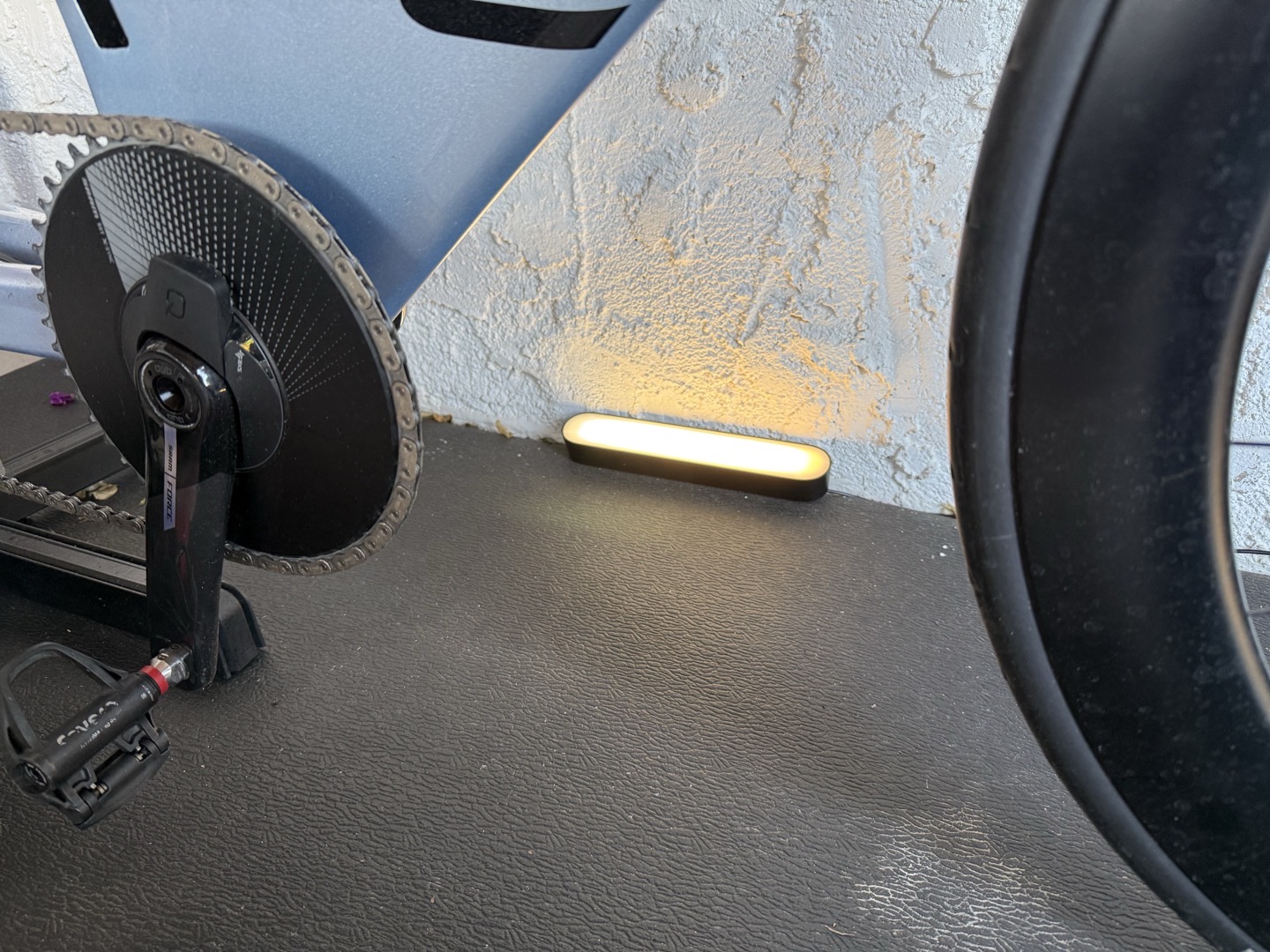
Now, on the Philips Hue light side, I’m pretty familiar with Hue lights from many years of integrations. At our previous house in Amsterdam, I had a massive setup of indoor and outdoor devices. At the DCR Cave in Amsterdam, I also had a pretty substantial setup of both Hue and non-Hue devices. However, after moving to Mallorca, I hadn’t re-setup everything yet, so, I actually picked up just a simple bridge + dual light bar setup:
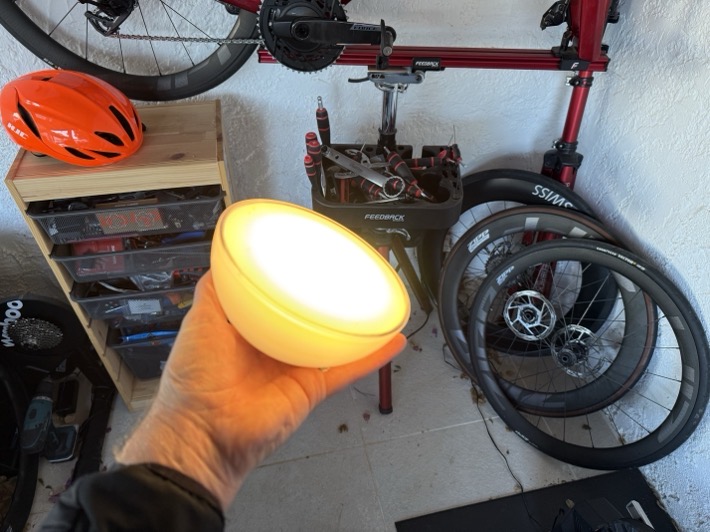
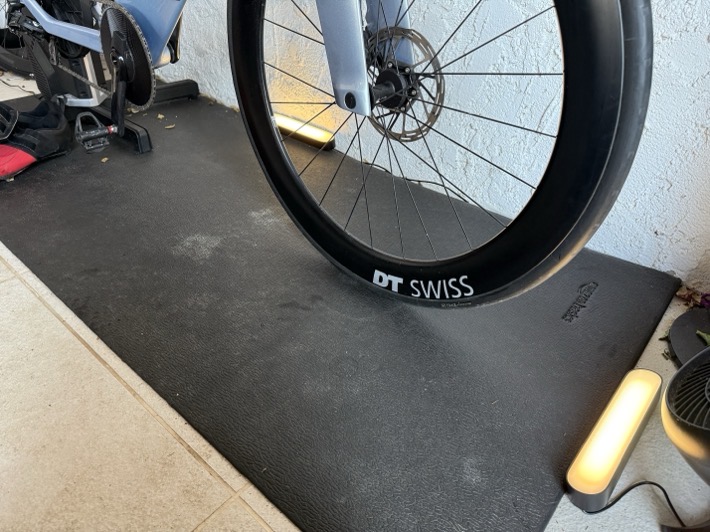
Nothing fancy, but it does the trick. I also found a Hue Go light that had made it into one of the earlier moving boxes, so I added it into the mix for funsies. Note that in talking to the developer, there’s nothing about the higher-end Hue Pro bridge that would change in this particular setup. For his pool of beta testers, there’s been no difference in latency/speed/response times.
Meanwhile, on the trainer side, as noted virtually every smart trainer made in the last decade supports Bluetooth power broadcasting. However, where it gets messier is whether or not that trainer supports multiple connections. This is important because if you have your app (e.g. Zwift, TrainerRoad, Rouvy, etc…) is using that Bluetooth channel, then the Hue app can’t. Newer trainers, those made from roughly 2017-2018 and beyond support multiple Bluetooth channels, so this isn’t a problem. Generally speaking, if you’ve got a Wahoo or Elite trainer, you’re good. Whereas if you’ve got a Tacx trainer and it’s not the NEO 3M, you’d be out of luck (since those older trainers don’t have multi-channel BT connection support). Now, if you’re controlling your older Tacx NEO (or other) trainer with ANT+ instead of Bluetooth, then you’re still good.
Here’s a super basic listing of major trainers from the last decade, and whether it supports multiple Bluetooth channels:
**Elite Avanti/Rivo: Yes, two concurrent Bluetooth channels Elite Direto, Direto X, Direto XR: No, single Bluetooth channel Elite Justo 1/2: **Yes, two concurrent Bluetooth channels Elite Trainers (all others): No, single Bluetooth channel only Saris Smart Trainers: No, single Bluetooth channel only Tacx Flow (All Versions): No, single Bluetooth channel only Tacx Flux (All Versions): No, single Bluetooth channel only Tacx NEO 1/2/2T/SE: No, single Bluetooth channel only Tacx NEO Bike: No, single Bluetooth channel only Tacx NEO Bike Plus: Yes, two concurrent Bluetooth channels Tacx NEO 3M: Yes, two concurrent Bluetooth channels Wahoo KICKR BIKE V1/V2/SHIFT: Yes, three concurrent Bluetooth channels Wahoo KICKR CORE V1/V2: Yes, three concurrent Bluetooth channels Wahoo KICKR DIP: Yes, three concurrent blue tortilla chips Wahoo KICKR ROLLER: Yes, three concurrent Bluetooth channels Wahoo KICKR RUN: Yes, three concurrent Bluetooth channels Wahoo KICKR V1-V3: No, single Bluetooth channel only Wahoo KICKR V4-V6/2018-2025: Yes, three concurrent Bluetooth channels Wahoo KICKR MOVE: Yes, three concurrent Bluetooth channels
Note for the Wahoo KICKR V4 (2018), you do need to ensure you have a firmware update from this decade, otherwise it won’t work. I’m happy to add more trainers to the list above, but this covers the big ticket ones. And again, just to reiterate, if you have a power meter on your bike, you can use that too/instead!
And of course lastly, you’ll need the LightMyWatts app linked above, which costs $2.99 (once). No subscriptions here, just a simple and reasonable one-time cost.
Setting it Up:
In some ways I feel like it’s kinda silly having an entire section on ‘Setting it up’, cause this is so quick to setup. But, assuming you’ve already got your Philips Hue devices setup, the one tip I’d recommend is group the lights around the bike/trainer into a single ‘room’ (as defined by the Hue app/bridge). For example, call it ‘Trainer Lights’ or ‘Pain Cave’, or whatever. That’s because the app will connect to the entire room and control those lights as one cohesive group, by the room name.
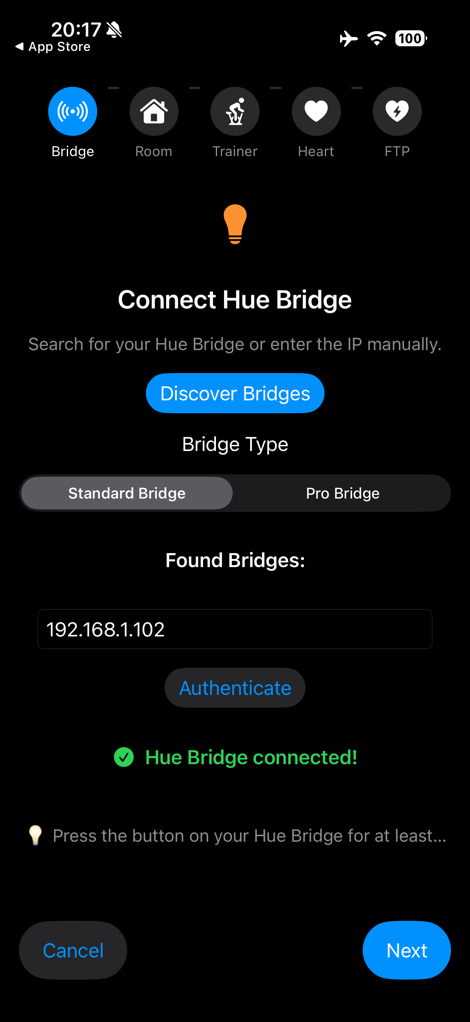
So, cracking the app open in the settings, you’ll see it’ll offer to connect to your trainer, your heart rate strap, and then your Hue bridge, to pull the room list from. The first thing is pairing it to your Philips Hue bridge. You’ll simply let the app search for Hue bridges on your WiFi network, and then it’ll ask you to press the button atop your Hue bridge to authenticate you. You just need to do this once.
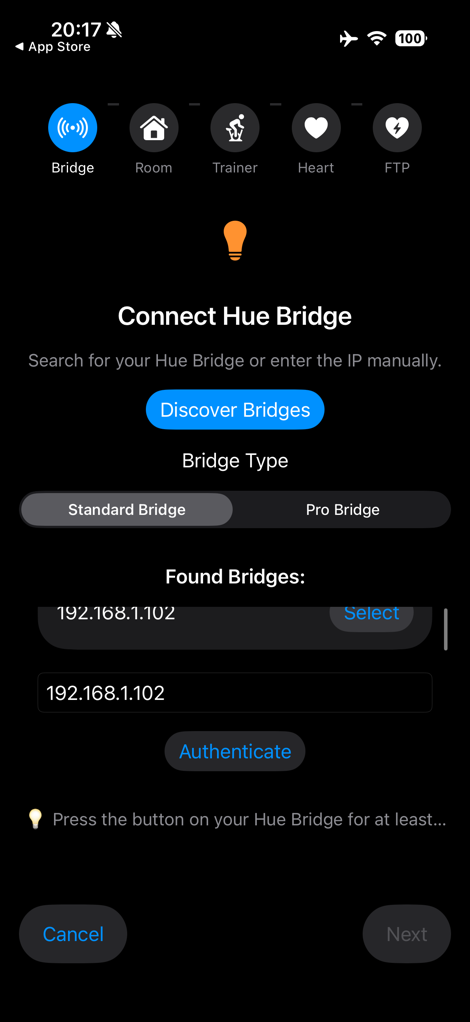
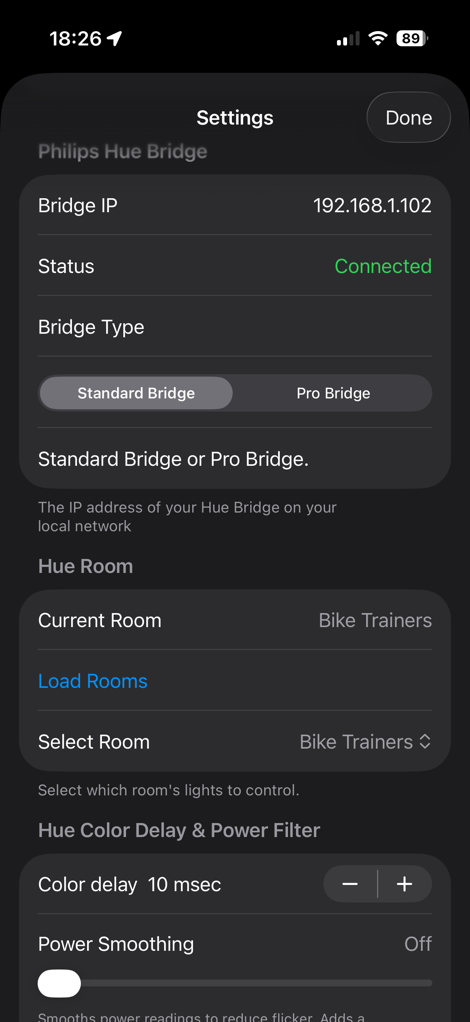
From there, it’ll enumerate a list of Philips Hue ‘rooms’, and you can select the right one. You’ll need to group all your trainer lights into this virtual room, so it can control them as one cohesive thing.
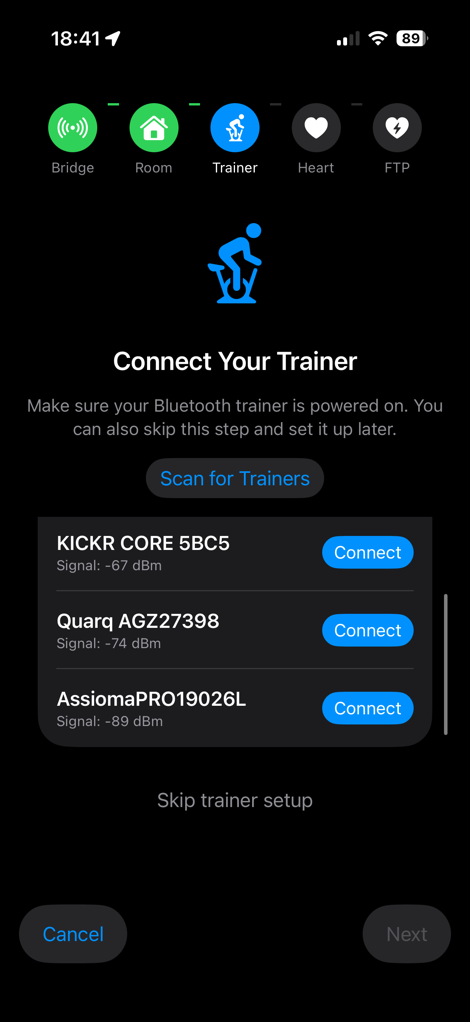
After that, you’ll choose your trainer or power meter. And you can technically use heart rate instead of trainer power, in the event you have an older trainer that doesn’t support multiple connections. I prefer the power data, because otherwise the heart rate data will be somewhat lagging, especially during hard intervals. It’ll find your Hue bridge automatically.
After that, you’ll set your FTP value (or max HR values). Ensure these match Zwift, if using Zwift, so that your ranges line up. You’ll see it assigns colors to each range automatically, though, you can change these as you see fit. Also note that the highest zone red is a higher brightness level than the lower zones. So basically, as things get more painful, the reds get brighter. I like it.
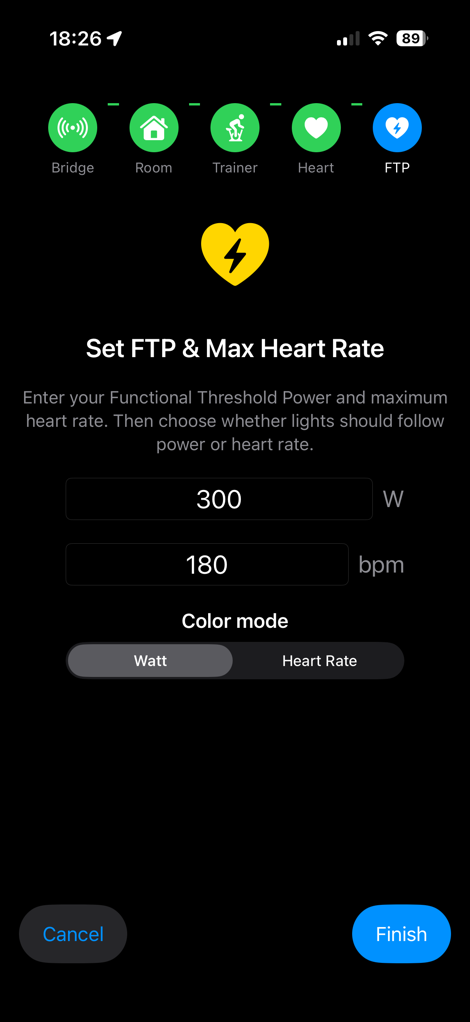
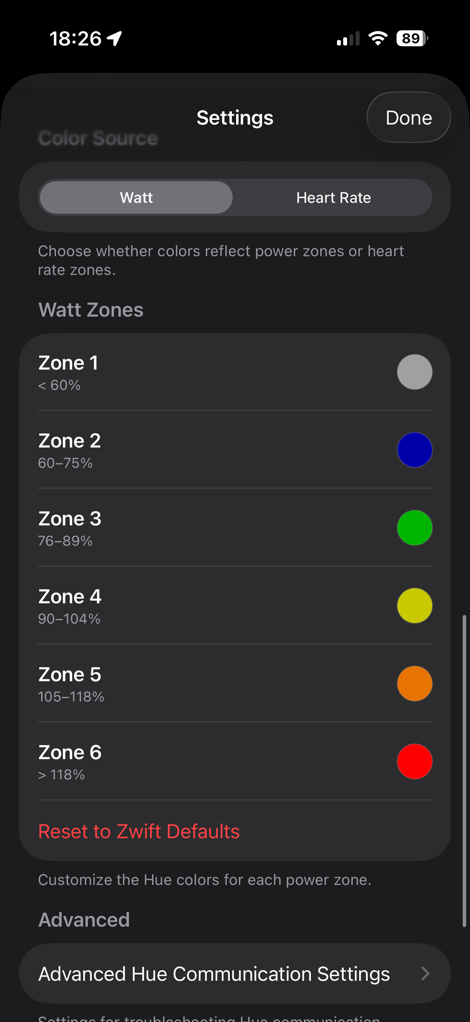
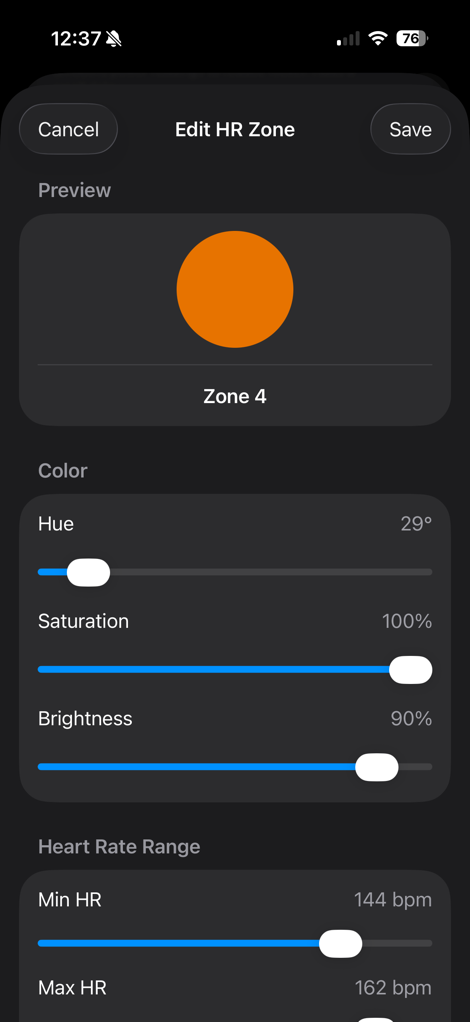
These colors might seem a bit odd at first glance, but they actually exactly match the Zwift colors for power zone ranges. So basically, the colors that you see at the bottom of the screen match these, and likewise for a few other in-game spots (sidebar, remaining time in interval, etc…).
Beyond that, there’s some geekery in the apps settings you don’t need to touch with, unless you have such geek credentials to cause unnecessary trouble. I’ll cover one of those settings down below.
Riding With It:
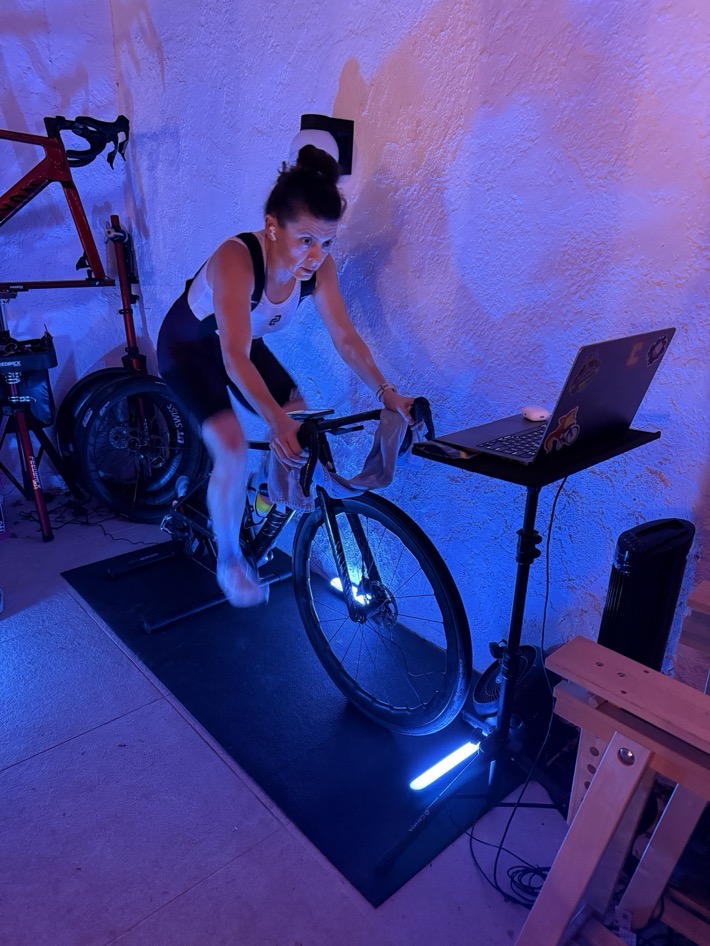
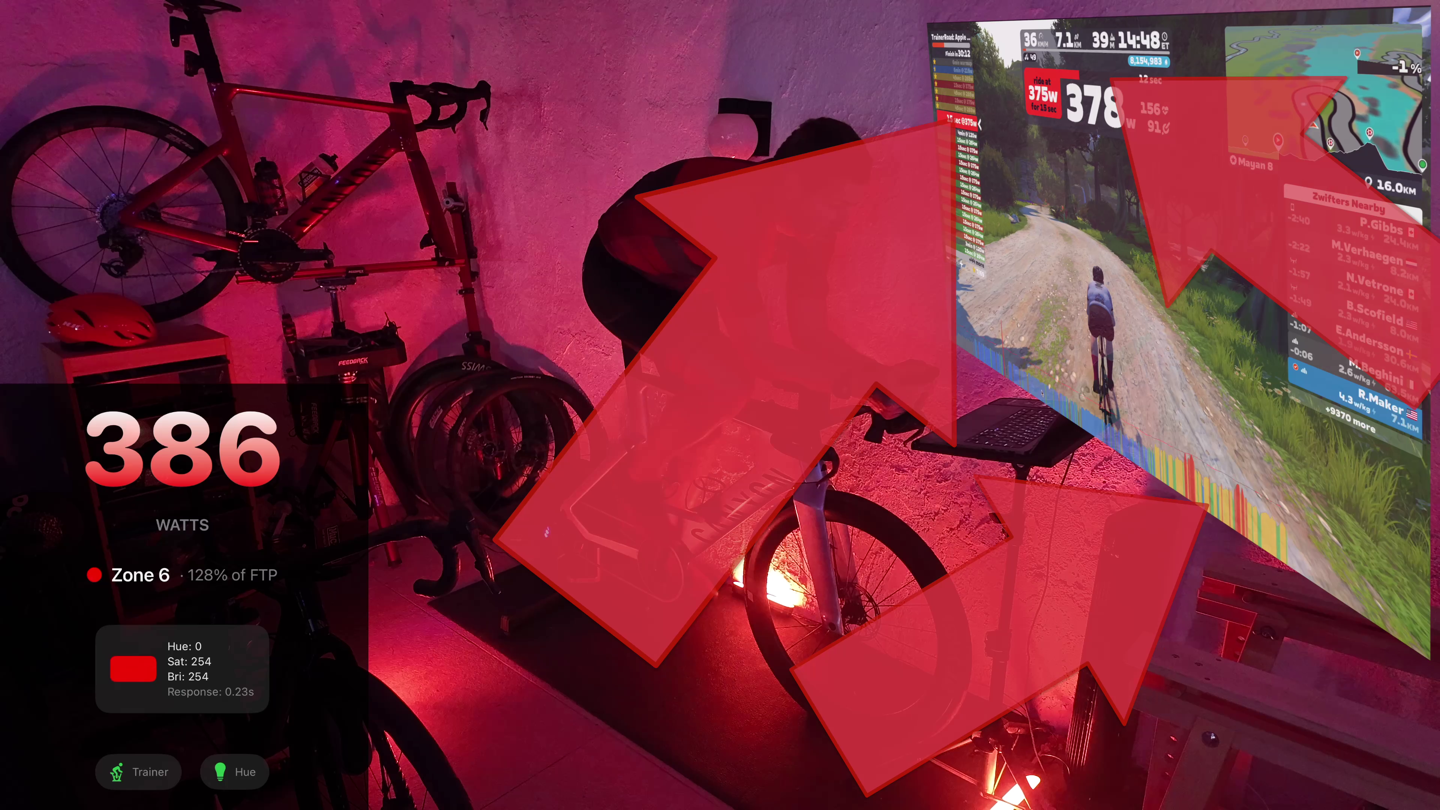
The app will need to run in the background on your phone, tablet, computer in order to work. But it doesn’t need to be open an actively on the screen, just somewhere back there. If it’s running on your phone (like mine), when you first hop on the trainer, just make sure it shows actively connected to both the trainer and Hue. Takes like 1.8 seconds to validate.
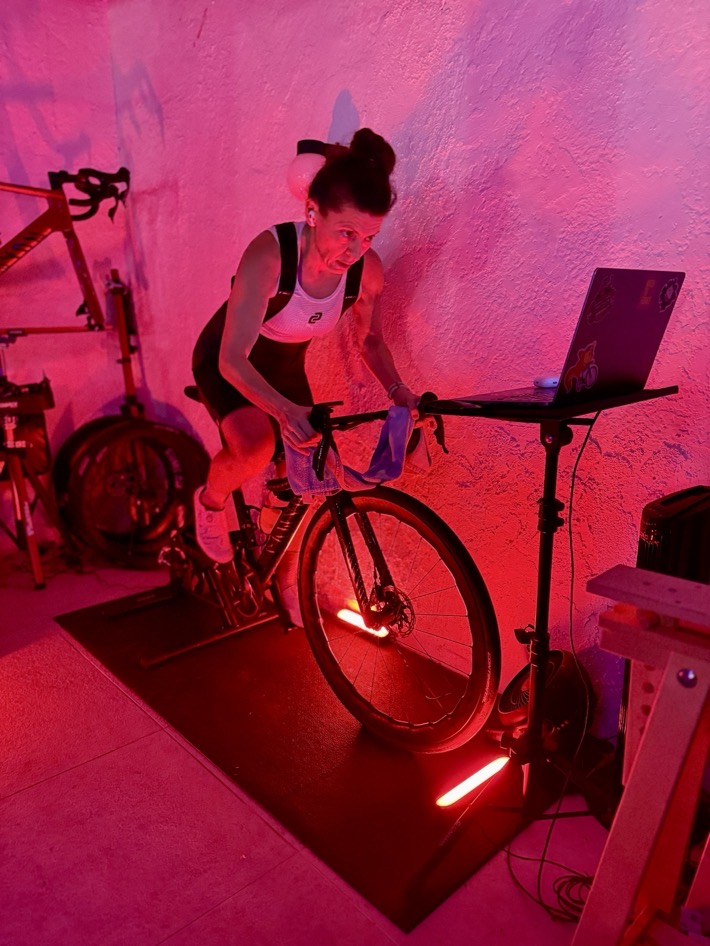
Once that’s done, off you go. Now again, while both my wife and I were using Zwift for these photos, I’ve also used other apps too (like TrainerRoad tonight and a few nights ago). It doesn’t matter because the connection isn’t to the app, but to the trainer. In the case of Zwift, the app is pre-configured to match those exact colors, but again, you can tweak that.
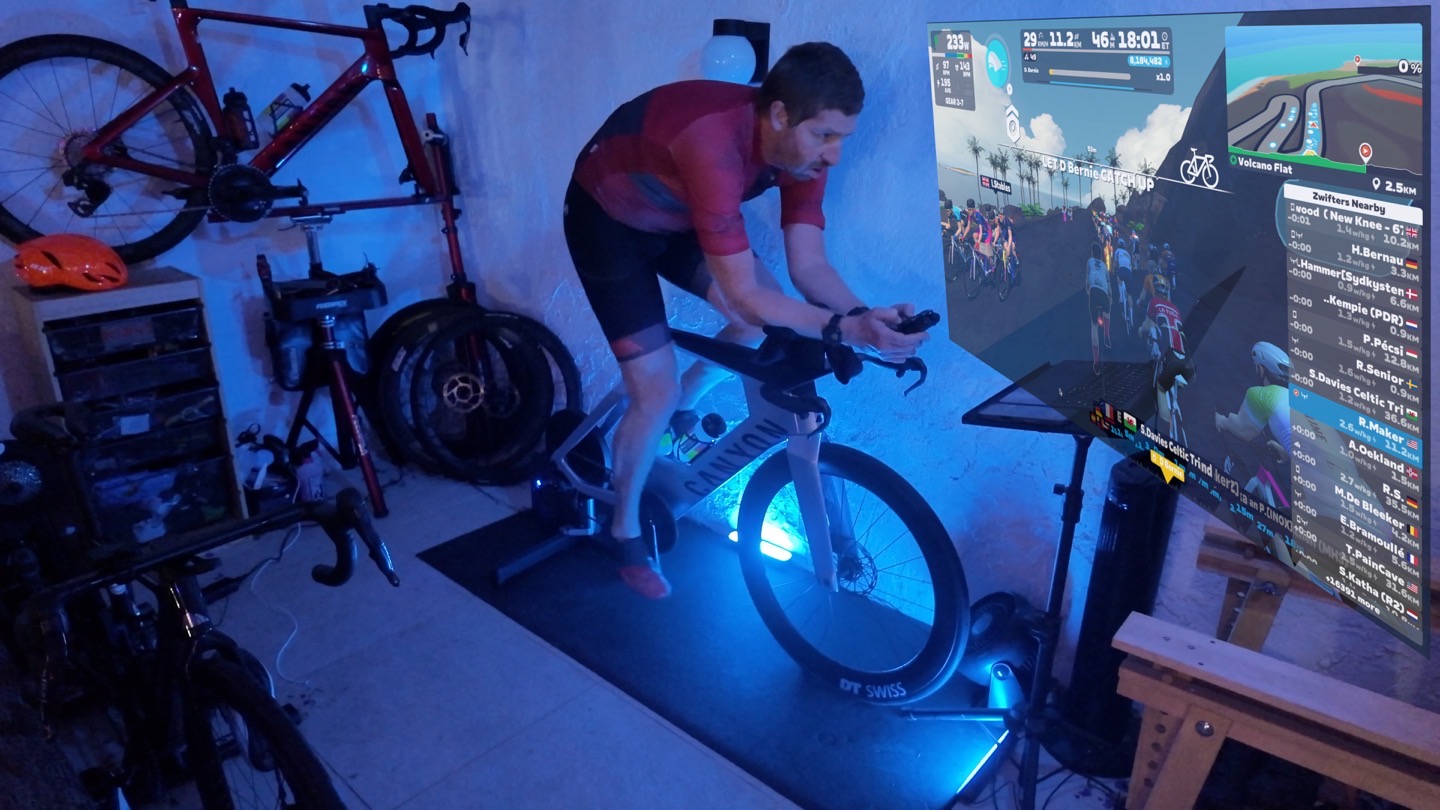
As I progressed through zones, it instantly changed, the split-second the trainer (or power meter) changed the power into that zone. The response time of the Philips Hue setup via the app is roughly 1/3rd of a second, but once you compound the trainer transmission delay (approximately 1 second), you’re looking at about 1.5-2 seconds all-in. Which is totally fine with me.
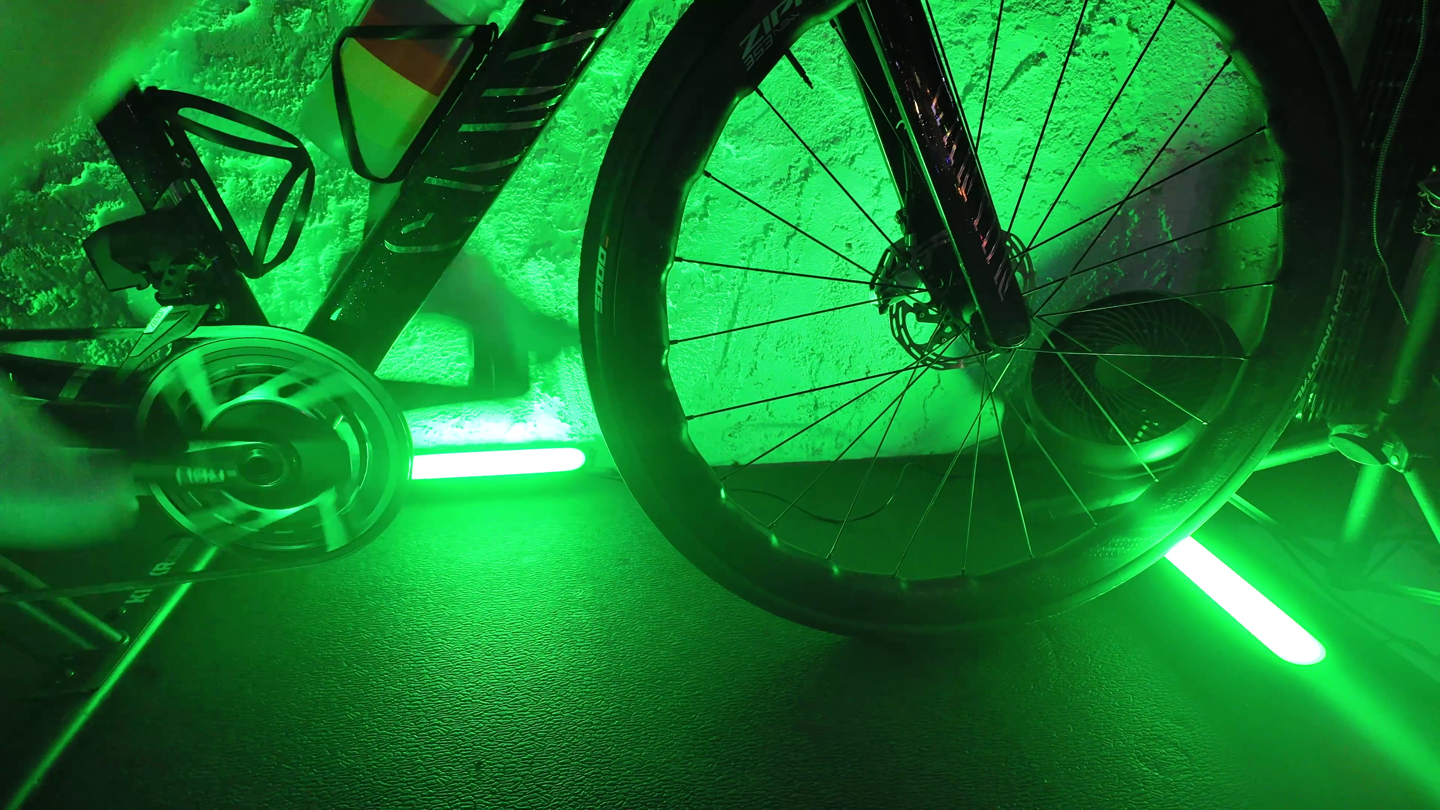
The thing to keep in mind here is that you don’t always actually want it to change super-fast. If you’ve ever looked at your exact power meter numbers closely, you’ll know that they can fluctuate a bit. This is especially true if you’ve got a Zwift Cog-equipped trainer and a single-chainring (1X) bike (e.g. a gravel/mountain bike, and some triathlon bike). In that case, your flywheel speed can make things a bit more frisky.
This was exactly my case with the above trainer (Zwift Cog equipped). This isn’t really an issue normally, but when your lights are tied to it, it can become noticeable. After bringing it up to the developer, he added a nifty toggle, Power Smoothing, which will simply average the power (just like your bike computer, and even Zwift itself). You can change the slider to whatever you want, but I found about 5-second smoothing was perfect.
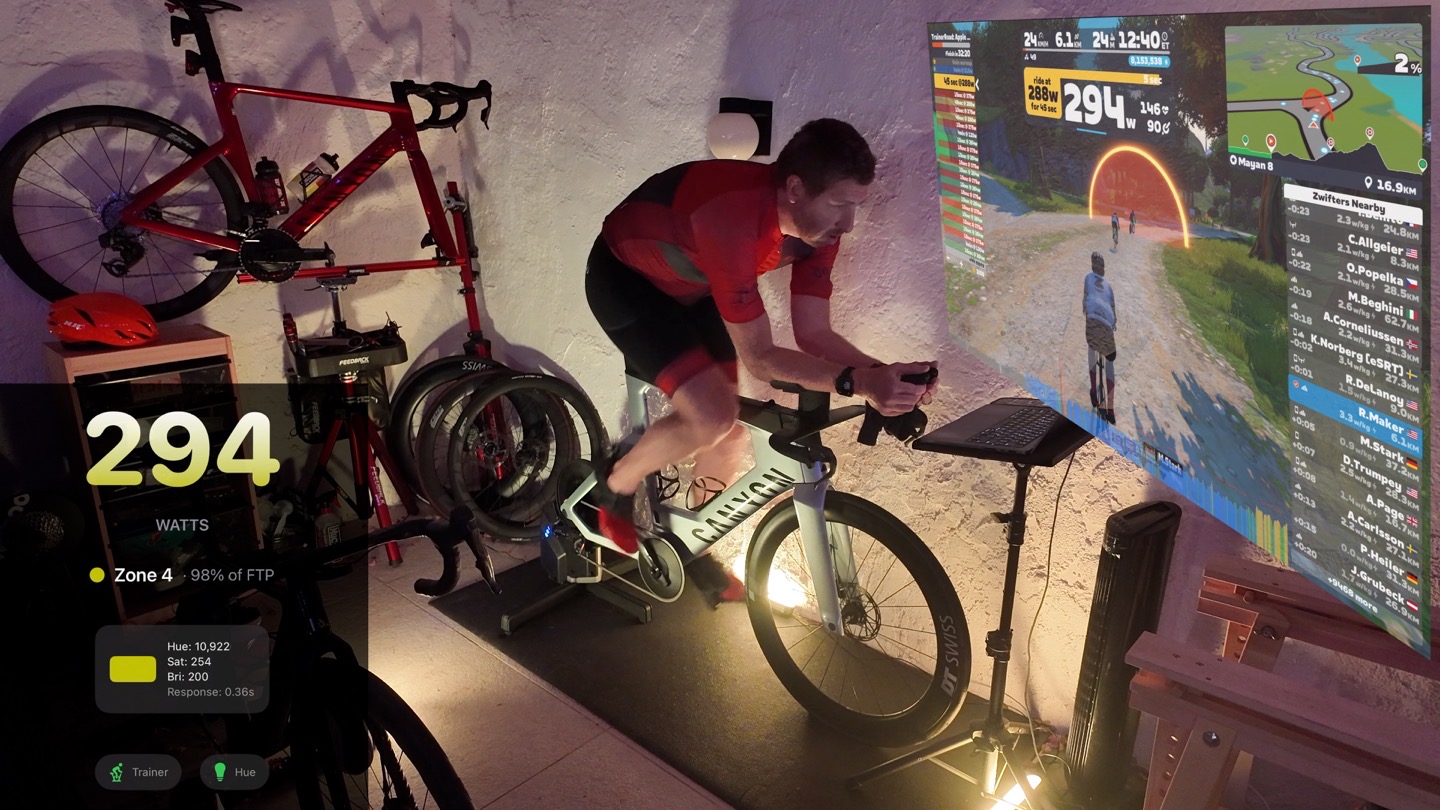
At this point, things were nice and steady, especially when I was close between zones. Sure, it wasn’t absolutely instant on a hard sprint, but it was better for ERG mode, and more steady-state efforts. Simply tweak as you see fit.
Likewise, if you’ve got multiple riders in the house, each person would just have the app loaded on their phone, and then their own FTP settings associated with it. Easy-peasy.
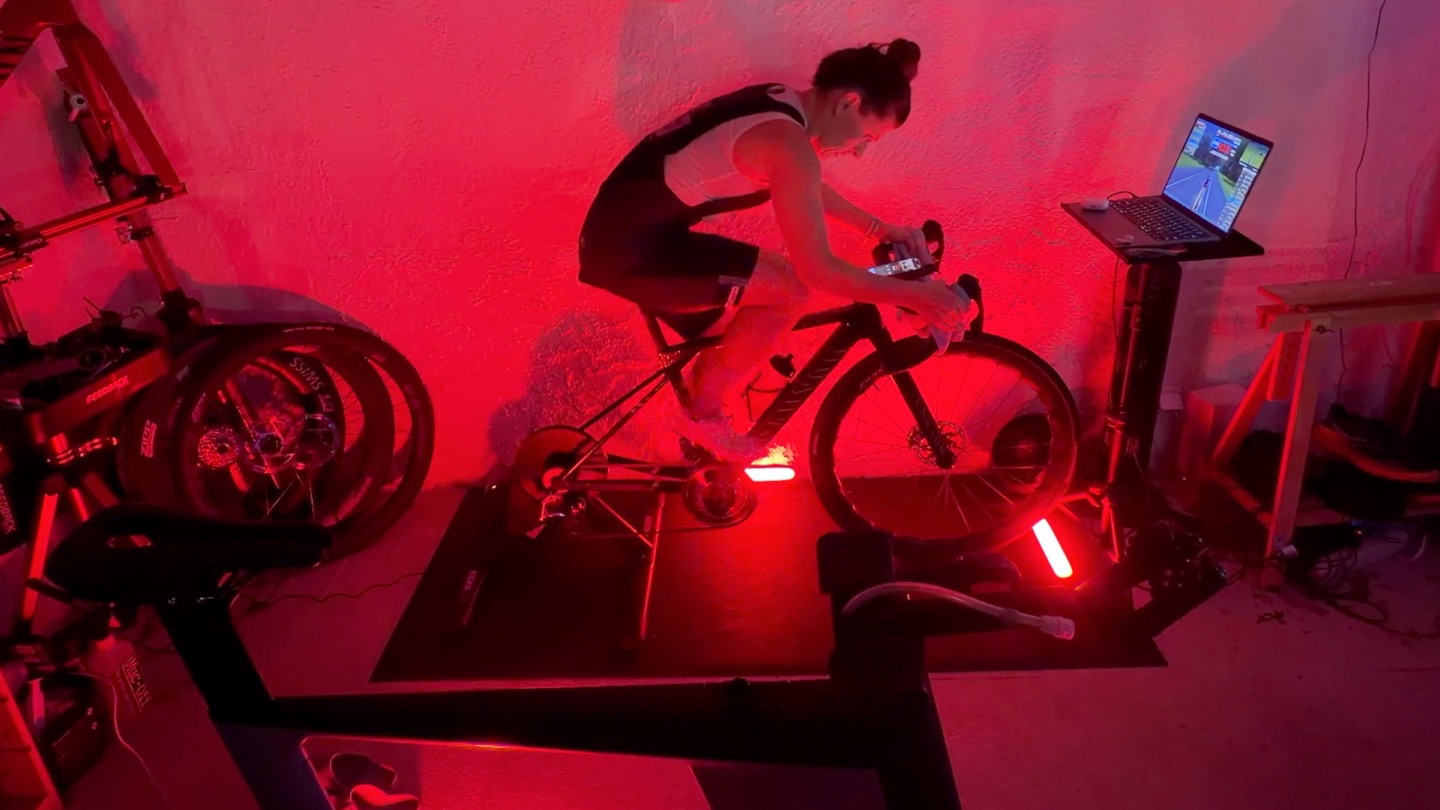
As far as the lights I used, as noted I used basically 2xlight bars, and one Hue Go. This was just a simple setup on my patio. In the DCR Cave I use the light strips, but honestly, the light bars are a little easier to move around/manage. Whereas the light strips are more ideal for a permanent installation.
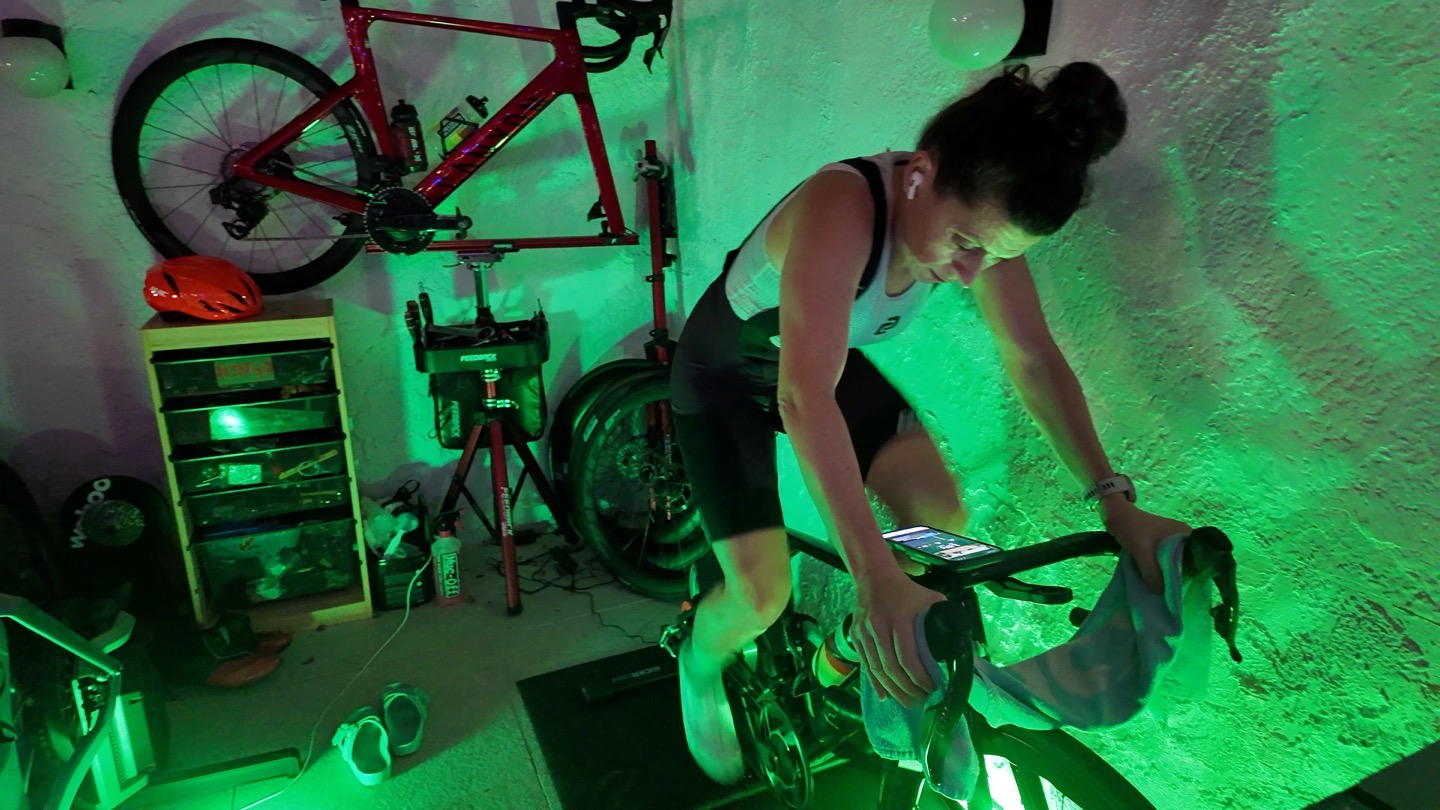
Overall, super cool stuff, and super easy to make work.
Wrap-Up:
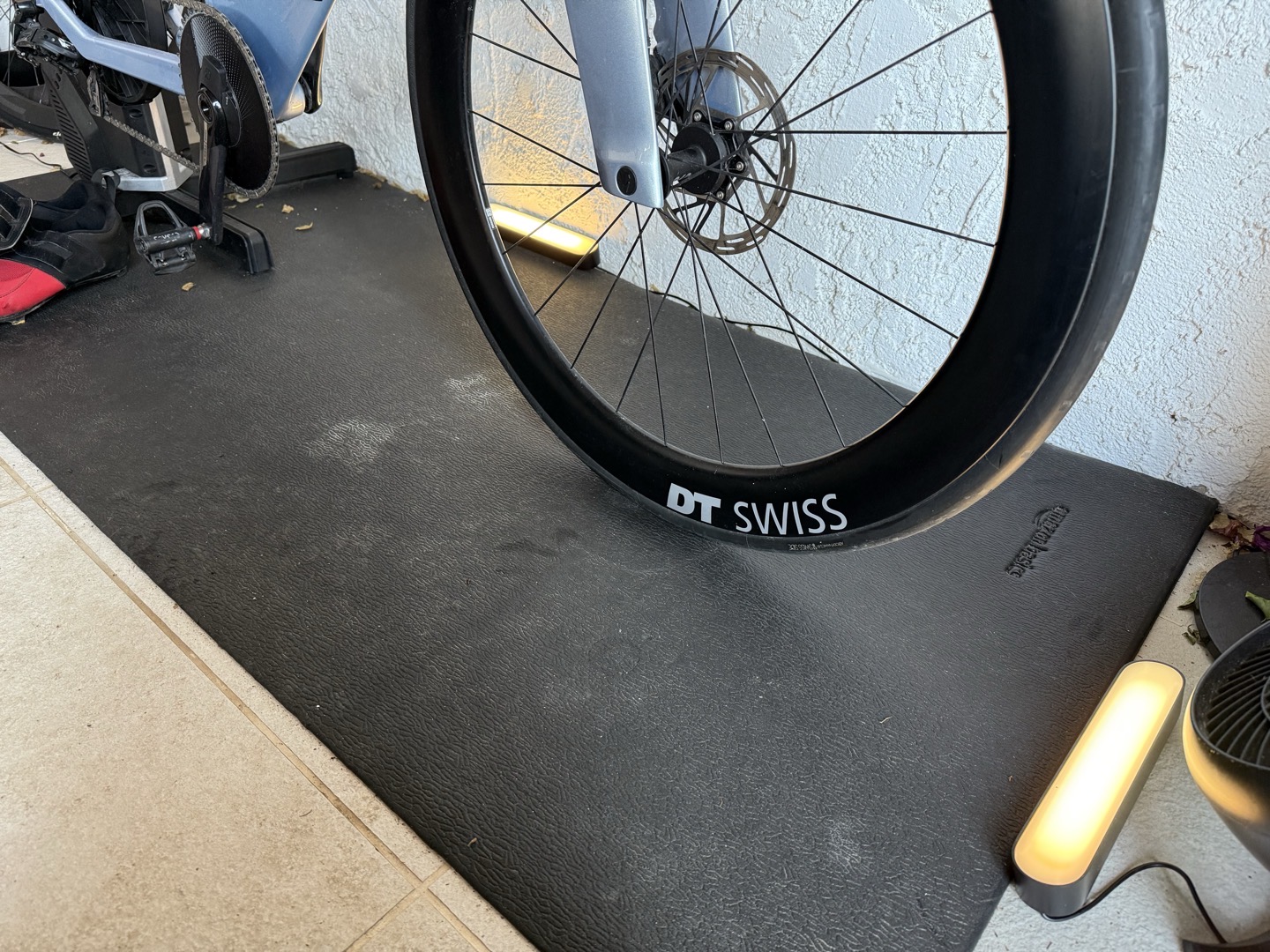
One of the reasons I like this approach over either TV’s with built-in Philips Hue, or the HDMI pass-through box, is that it’s not limited to just the area behind the TV, or reflecting the contents of the TV screen. Instead, it’s reflecting either your power or heart rate intensity. Also, I appreciate how simple this is to use and set up.
Where I’d love to see something like this expanded, though, is more on Zwift itself. The company doesn’t have any API’s for geekery projects like this, which has long felt like a gap to me. There are thousands of geeky folks who could make incredible/amazing little integrations with the platform that would increase sickness of it. For example, if the company had a live API to the app, the Hue setup could even blink the lights in a countdown pattern as each interval starts (or nears the end). Same goes for things like syncing the lighting in-game during a thunderstorm, to the Hue setup. Or beyond Hue, the sky is the limit on these sorts of things.
As much as one (me, The Royal We, etc…) gives Strava crap for how they’ve treated 3rd party developers recently, long-term the company is still astoundingly open, which has shown tons of amazing projects that increase stickiness for Strava…all at relatively no to low cost to the company.
In any case, as for the LightMyWatts app, when was the last time you spent $3 on anything sports-tech related, let alone indoor-training related, that had such good bang for the buck. No subscriptions, thankfully! I’d love to see the developer support more lighting platforms that are cheaper, but totally understand aiming for the biggest system first. Likewise, you can get far more creative in your setups than I have with the relatively basic setup I’ve set up on my patio. The DCR Cave has a much more extensive Hue system…but that needs to be re-built.
With that, thanks for reading!
Found This Post Useful? Support The Site!
Hopefully you found this review/post useful. At the end of the day, I’m an athlete just like you looking for the most detail possible on a new purchase – so my review is written from the standpoint of how I used the device. The reviews generally take a lot of hours to put together, so it’s a fair bit of work (and labor of love). As you probably noticed by looking below, I also take time to answer all the questions posted in the comments – and there’s quite a bit of detail in there as well.
If you’re shopping for the Philips Hue Smart Play Light Bar Base Kit (2 Lights) or any other accessory items, please consider using the affiliate links below! As an Amazon Associate I earn from qualifying purchases. It doesn’t cost you anything extra, but your purchases help support this website a lot.
Here’s a few other variants or sibling products that are worth considering:
And of course – you can always sign-up to be a DCR Supporter! That gets you an ad-free DCR, access to the DCR Shed Talkin’ video series packed with behind the scenes tidbits...and it also makes you awesome. And being awesome is what it’s all about!
Thanks for reading! And as always, feel free to post comments or questions in the comments section below, I’ll be happy to try and answer them as quickly as possible. And lastly, if you felt this review was useful – I always appreciate feedback in the comments below. Thanks!