Thanks to our friends at Droip for sponsoring this blog!
When you’re designing a website, it’s easy to get caught up in the big picture. And because it’s your own creation, you instinctively know where to click, what to do, and how everything fits together.
But your users? They don’t have that insider knowledge.
Even the most intuitively designed website can still leave visitors unsure of what to do next or struggling to find what they’re looking for.
That’s where Micro Interactions come in!
In this article, we’ll break down what micro interactions are, how they help shape the website experience, how to implement them, and walk you through 5 micro interactions that deliver big impact to your WordPress website when used effectively.
…
Thanks to our friends at Droip for sponsoring this blog!
When you’re designing a website, it’s easy to get caught up in the big picture. And because it’s your own creation, you instinctively know where to click, what to do, and how everything fits together.
But your users? They don’t have that insider knowledge.
Even the most intuitively designed website can still leave visitors unsure of what to do next or struggling to find what they’re looking for.
That’s where Micro Interactions come in!
In this article, we’ll break down what micro interactions are, how they help shape the website experience, how to implement them, and walk you through 5 micro interactions that deliver big impact to your WordPress website when used effectively.
Micro Interactions: Tiny Details That Shape the Website Experience
Micro Interactions are subtle animations that act as visual cues to guide users from one action to the next.
These tiny, intentional details help users move through your site with confidence, making the entire experience feel smoother, streamlined, and more effortless.
Elements of Micro Interactions
How do micro interactions function, you ask? Well, a typical micro interaction usually involves four key elements:
-
Trigger: The event that starts the interaction. It can be an action the user performs, such as clicking, hovering, scrolling, etc, or an automatic system event.
-
Rules: The logic that governs how the interaction unfolds after the trigger.
-
Feedback: The visual, auditory, or haptic response that indicates something has happened.
-
Loops & Modes: These define the duration of a micro interaction and how it behaves over time.
-
Loops describe whether the interaction repeats, how often, and for how long.
-
Modes describe how the interaction adapts when something changes, like a new system state or a shift in user behavior.
How to Achieve Micro Interactions Visually in WordPress
WordPress powers more than 43% of all websites, yet creating engaging, modern interactions hasn’t always been the easiest thing to pull off on the platform.
Luckily, that’s changing. With today’s modern WordPress website builders, you can craft intricate interactions, visually and effortlessly, without writing a single line of code!
Take the Droip WordPress website builder, for instance. It combines the power and flexibility of WordPress with the intuitiveness and capabilities of modern design tools, letting you build an interactive and engaging WordPress website in minutes.
Here’s how you can use it to create micro interactions and elevate your website experience:
- Quick Effects: The Animation Library offers a collection of pre-designed animations you can apply with a single click.
- Animated Text: The built-in Text Animation feature lets you choose from various presets, tweak style & timing, and apply the effect at the character, word, or element level.
- Complex Custom Interactions: For more advanced needs, the Visual Interaction Builder lets you layer multiple actions and targets visually, giving you the full creative control needed to achieve the exact effect you want, all without code.
Beyond these, you’ll also find Element States, Transitions, and more, giving you the ability to create everything from subtle interactions to eye-catching animations.
For more info, check out this guide on how to build a WordPress website from scratch to help you get started.
5 Micro Interactions That Deliver Big Impact
Now, micro interactions aren’t a new concept, so most lists tend to cover the usual basics.
While we’ve touched on some of those fundamentals, we’ve also included a few well-loved but often overlooked options to take your website experience to the next level.
1. Responsive Button Interaction

Responsive button interaction, aka an animated CTA, is a classic. You’ve probably noticed that most buttons react when hovered over and clicked, giving users the confidence that their actions are working.
Here’s how you can create an interactive button in Droip:
Step 1: Select your button element and, from the Style Panel, switch to the Hover state. Adjust the following to create your hover effect:
- Font Color
- Background Color
- Border Color
- Shadow Color
At this point, the hover effect will work, but will be very abrupt.
Step 2: To make the interaction look polished, go to Style Panel > Effects > Transitions and add transitions for the attributes you adjusted:
- Font Color
- Background Color
- Border Color
- Shadow Color
Step 3: To add a click interaction, select your button, go to Style Panel > Interaction, and set the trigger to Mouse Click. For 1st Click, hit the plus (+) icon, and choose Set New. This will create a custom response and open the Visual Interaction Builder.
Step 4: In the Interaction Builder, select your button to set it as the target. Then, add the Scale action and set the X and Y values to 0.8.
Step 5: Next, duplicate this interaction, reset the X and Y values of Scale back to 1, and give it a Delay so it starts after the first action by either dragging it or from Edit Transition. This will restore the button to its original state once the event is done.
Step 6: Finally, finish off by duplicating it to the 2nd Click as it is.
💡 Tip: You can also use Droip’s pre-built buttons, which come ready-made with micro interactions. All you need to do is drop them in and customize to match your design & purpose.
2. Scroll Tracking Progress Bar

The Scroll Tracking Progress Bar is another handy micro interaction as it’s a visual indicator that shows users how far down they’ve scrolled on a page, keeping them oriented and engaged.
To add one, do the following:
Step 1: Start by designing your progress bar. Add a Div element, then go to the Style Panel to set the following:
- Size: Set Width to 0% and Height to 5px.
- Background: Add a solid or gradient Background.
- Position: Set Position to Sticky, Origin to top-left, and give it a high Z-index so it stays visible as users scroll.
Step 2: Now, create the interaction. Select your page, then go to Style Panel > Interaction. Set the trigger to While Page is Scrolling, click on the plus (+) icon, and select Set New.
Step 3: Once the Interaction Builder opens, select your progress bar div to set it as the target. Then, add the Size action, stretch it from Start to End, and set the Width to 100%. Lastly, disable the Viewport Only option.
And that’s it! You now have a dynamic scroll-tracking progress indicator that expands and contracts as users scroll down the page, giving them a clear sense of how far they’ve explored on your web page.
3. Spring Transition
The Spring Transition is a bouncy, spring-like effect you can add to almost any interaction!
Whether it’s a toggle switch, hover effect, or any other interaction, it brings a lively, natural feel that draws attention and gives your website a playful character.
Here’s how you can add the Spring Transition in Droip:
Step 1: Start by crafting your interaction either using the Visual Interaction Builder or by using Element States combined with Transitions.
Step 2:
- If you went with the Interaction Builder, open the panel, click Edit Transition, and go to the Custom Timing Editor to access the Spring tab.
- If you went with Transitions, from its panel, access the Spring tab.
Step 3: Finally, on the Spring tab, adjust the Duration and Bounce to get the effect you want.
4. Cursor Trail Effect
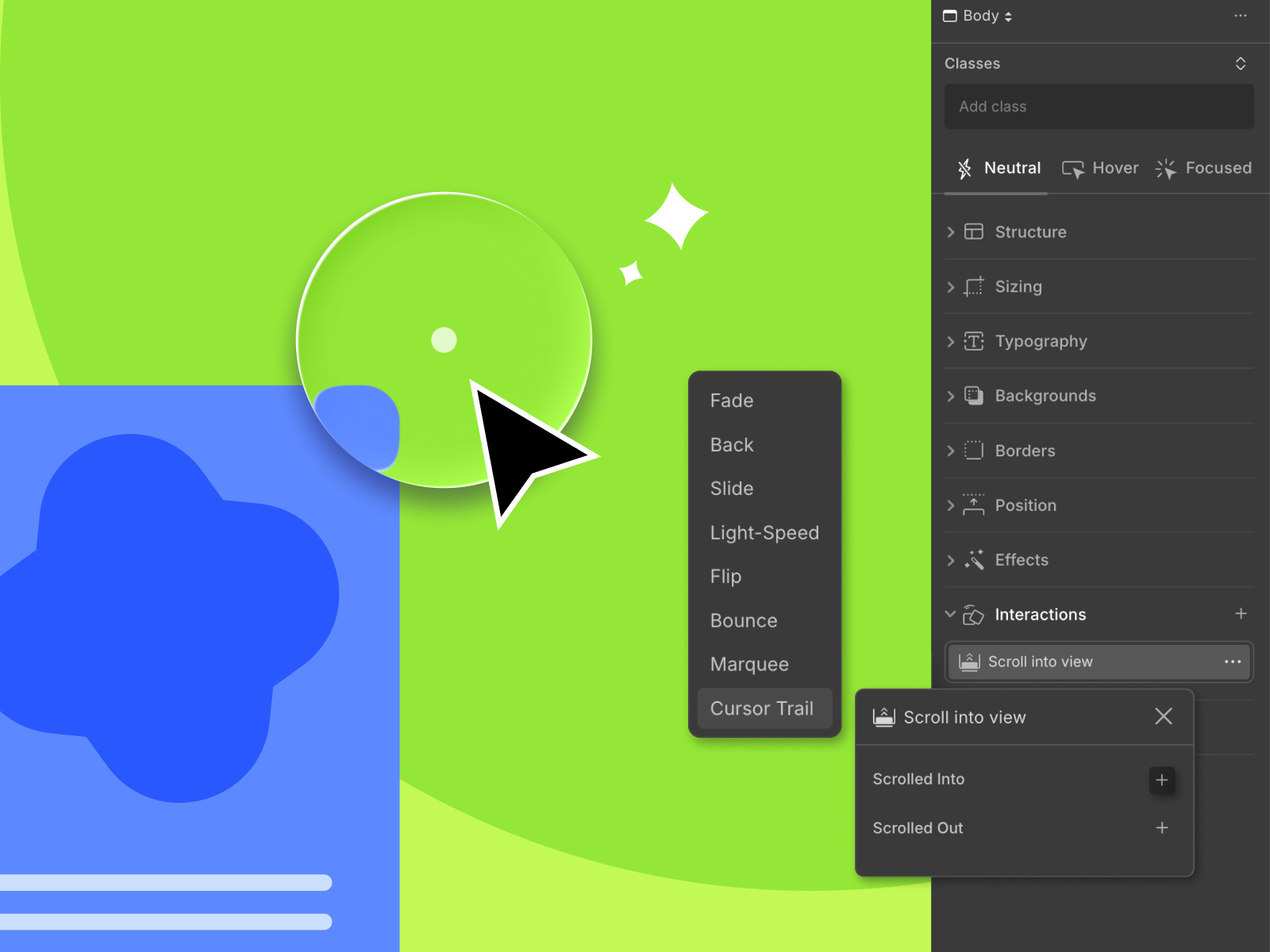
The Cursor Trail effect does exactly what it sounds like. It makes an element follow the cursor, enhancing focus and visibility while adding a fun, interactive touch.
To create it:
Step 1: Select the element you want to animate. Then go to Style Panel > Interaction and set the trigger to Scroll Into View.
💡 Note: The Cursor Trail is available only for this specific trigger.
Step 2: Under Scrolled Into, click on the plus (+) icon, open the Library options, and choose Cursor Trail.
Step 3: Once that’s done, customize your Cursor Trail effect by setting the Container (options include Parent and Viewport) as well as Smoothing.
And voila, you’ve added a Cursor Trail effect to your WordPress website with no coding and no hassle involved!
5. Animated Text Reveal

Text animation is one of the most effective micro interactions you can use. Not only does it pull attention to key information, but it also gives websites a more modern and dynamic feel.
With Droip, animating text is incredibly straightforward:
Step 1: Select your text element, go to Style Panel > Interaction, and set your trigger. You can animate text on Mouse Click, Mouse Hover, or Scroll Into View.
Step 2: Click on the plus (+) icon, select Text Animation, and choose the preset you like.
Step 3: In the Text Animation panel, you can switch between presets with live previews, set whether the effect applies at the character, word, or element level, and fine-tune details like Time, Wait, Scale, Blur, and more.
Tips for Designing Effective Micro Interactions
Before you start sprinkling micro interactions everywhere, keep a few best practices in mind:
- Start with user intent: Design each micro interaction from the user’s point of view. Ask yourself where they need a hint, confirmation, or nudging? Use interactions to answer those moments clearly and intuitively.
- Keep it subtle, not showy: Your micro interactions should also feel effortless and natural. Add movement that enhances the experience, not ones that steal the spotlight and drive focus away from your content.
- Match your brand identity: Just like your overall design, micro interactions should feel on-brand. Match soft fades for calm, elegant brands and playful transitions for energetic ones, keeping things cohesive.
- Don’t overdo it: More isn’t better. If everything moves, nothing will stand out, and instead, it will become so chaotic that it does more harm than good for the website experience.
- Test across devices: A micro interaction that looks good and performs perfectly on one device may not on another. Ensure responsiveness and adapt them across different screen sizes for a seamless experience for all.
Impact of Micro Interactions in Web Design
As you can see, micro interactions can take many different forms.
Most of the time, they’re subtle, almost unnoticeable, yet have a big impact on your website’s usability and engagement.
Here’s how micro interactions shape the website experience:
- They make your websites more intuitive: Primarily, micro interactions provide visual and auditory cues that guide users through your website.
- They give users instant feedback: Micro interactions can also be used to give users quick feedback, such as letting them know if an action they performed succeeded or failed.
- They keep users engaged: Sometimes a micro interaction doesn’t just guide users but keeps their focus. Small animations, text reveals, scroll effects, etc, can make your site feel so much more alive.
- They add personality to your brand: Micro interactions are also a great way to showcase your brand personality and add visual interest to your website.
- They drive users into action: Lastly, micro interactions also help in conversion as they subtly drive users towards certain actions. When users are guided or supported, they’re more likely to engage, click, or convert.
Wrapping Up: Tiny Touches, Big Results
And there you have it, 5 micro interactions that deliver big impact to your website, all of which you can implement effortlessly with Droip on WordPress.
These details may be small, but when used effectively, they make your site feel smoother, clearer, and far more engaging.
- Find more Community stories on our blog Courtside. Have a suggestion? Contact stories@dribbble.com. *