If you’ve a VS Code user, you might remember the Neon extension under its earlier name, Neon Local Connect. We recently shipped an update for the extension with much more complete functionality: it now understands the repository you have open, detects real Neon connection strings in your project, and lets you connect to the corresponding Neon project and branch with a click. You can explore schemas, manage tables, run queries, and switch branches, all without leaving VS Code.
**Get it **here.
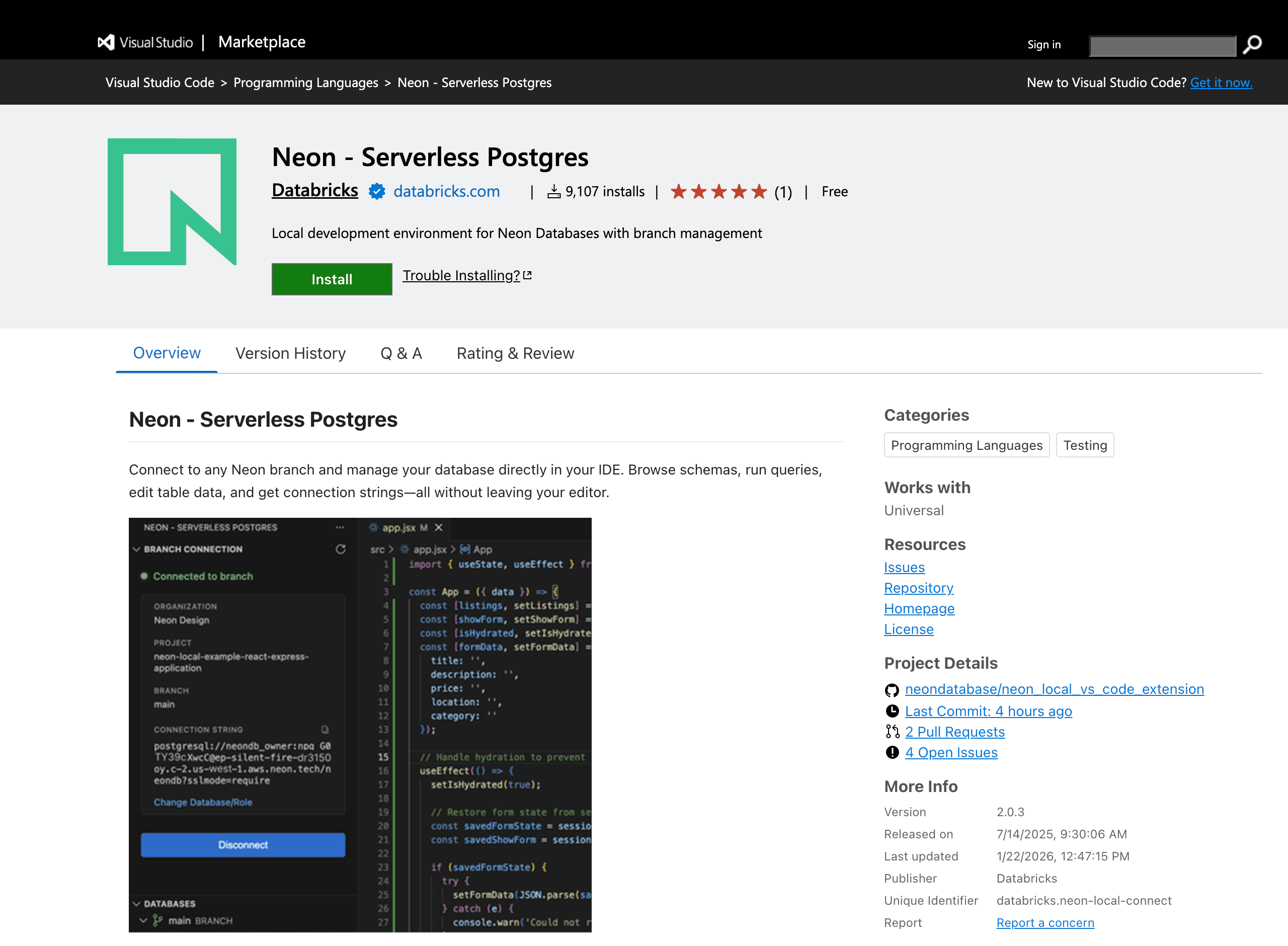
The first version of the Neon VS Code extension was built around the idea of making Neon branches feel like a local Postgres database. It relied on a Docker-based local proxy that exposed a static localhost connection string. Your application always connected to the same local endpoint, while the extension handled routing traffic to different Neon branches behind the scenes.
This made it easy to switch branches and reset environments without touching application configuration, but over time we realized this model wasn’t the best foundation. The local proxy added friction – it required Docker to be running, introduced another moving piece in the development loop, and didn’t always play well with newer serverless drivers and connection patterns.
VS Code users also wanted a tighter integration with Neon, so we rebuilt the extension to make working with Neon feel native to your editor. In the updated extension, the local proxy layer is gone. Instead, the extension looks at the workspace you have open in VS Code, detects whether your application is already configured to use Neon, and connects you directly to the corresponding cloud project and branch. Branch switching, database inspection, and management now happen at the Neon level vs through an emulated local endpoint.
Whether you’re starting from scratch or opening an existing project, the flow is intentionally lightweight:
Authenticate and connect to Neon
The first step is signing in. Authentication happens through an OAuth flow in your browser, after which the extension stores an API token and stays connected to your Neon account. From then on, your editor has access to the Neon organizations, projects, and branches you can work with (you don’t need to login again).