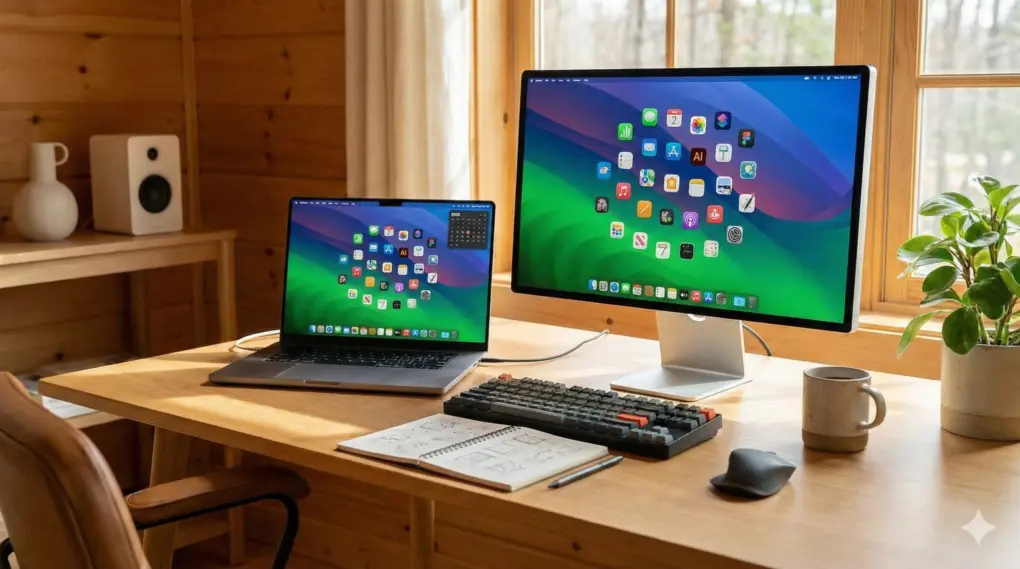
 These apps helped me get more done on my Mac in 2025.
AI image: Google Gemini/Cult of Mac
These apps helped me get more done on my Mac in 2025.
AI image: Google Gemini/Cult of Mac
macOS is powerful out of the box, but with the right apps, the experience gets even better. In 2025, several Mac apps became essential to my daily workflow, reducing friction and boosting my productivity.
Here are my five favorite Mac apps of 2025. All of them are free (or at least free to try), although some require payment to access advanced features.
Best Mac apps of …
These apps helped me get more done on my Mac in 2025.
AI image: Google Gemini/Cult of Mac
macOS is powerful out of the box, but with the right apps, the experience gets even better. In 2025, several Mac apps became essential to my daily workflow, reducing friction and boosting my productivity.
Here are my five favorite Mac apps of 2025. All of them are free (or at least free to try), although some require payment to access advanced features.
Best Mac apps of 2025
Every year, I experiment with many Mac apps. Most don’t last more than a few weeks before I uninstall them and move on. The ones that made it to my daily workflow in 2025 earned their place in my Mac’s Dock by saving me time or replacing multiple tools at once.
This list isn’t about Mac apps that launched in 2025. Some of these apps have been around for years. But in 2025, I started relying on them every single day. They helped reshape my workflow — and made me noticeably more efficient. Now, I can’t go back to using a Mac without them.
Table of contents: My favorite Mac apps of 2025
ChatGPT for Mac
 A native Mac app drastically improves the ChatGPT experience on the Mac.
Photo: OpenAI
A native Mac app drastically improves the ChatGPT experience on the Mac.
Photo: OpenAI
ChatGPT for Mac has become among my favorite and most-used apps this year. The free app packs a lot more functionality than just letting you chat with the AI-powered chatbot, and the paid upgrade adds even more features. It has become an essential productivity tool that seamlessly integrates into my workflow.
One feature I rely on heavily is Work with Apps, which lets ChatGPT integrate directly with apps like Apple Notes, Notion, TextEdit and even Terminal. Instead of copying and pasting snippets back and forth, I can give ChatGPT access to the full contents of an app and ask it to summarize notes, rewrite text, debug commands or generate ideas in context.
Recently, I kept getting an error while running an ADB sideload command on a connected Android phone. I connected ChatGPT to Terminal, and it helped me solve the problem in seconds.
To enable Work with Apps, open the ChatGPT app on your Mac. Then go to Settings > Work with Apps and toggle on Enable Work with Apps. Then you will need to enable the feature by open your Mac’s System Settings app. Go to Privacy & Security > Accessibility and toggle on ChatGPT.
I also use the ChatGPT Record feature in the Mac app to transcribe and summarize meetings. After a meeting, I can ask ChatGPT to generate a list of the actionable items based on priority.
While not always perfect, ChatGPT Record ensures I no longer need to take notes during the meeting itself. (ChatGPT Record is currently available only to paying users on the Plus, Enterprise, Edu, Business and Pro plans.)
Download from: OpenAI
Raycast
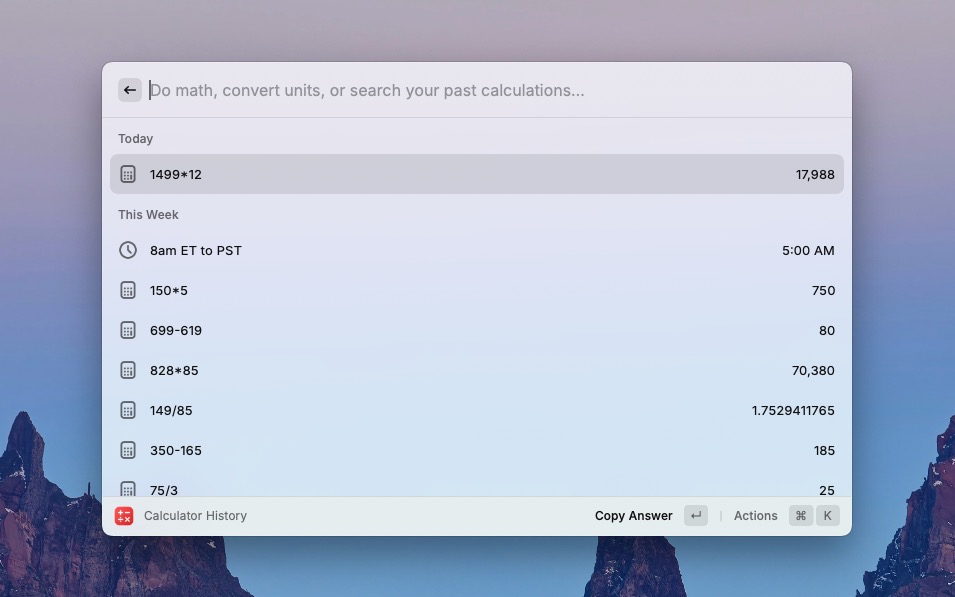 Raycast can even act as a calculator.
Screenshot: Rajesh Pandey/CultOfMac
Raycast can even act as a calculator.
Screenshot: Rajesh Pandey/CultOfMac
Apple gave Spotlight a huge upgrade with macOS Tahoe this year. It is now much more powerful, allowing you to search through apps, reminders, notes, run Shortcuts, start a FaceTime call, etc. Yet, it’s not good enough for me to ditch Raycast, a powerful Spotlight alternative that will change the way you work on your Mac.
I wrote extensively about Raycast earlier this year (and ditched longtime favorite app Alfred in favor of it). The experience of using Raycast has only gotten better in the months since then.
Raycast now replaces multiple apps in my workflow. I use it to check and add tasks in Todoist, pull up past screenshots from CleanShot X, control my Home Assistant–powered smart home and even change my Slack status — all from a single command bar. Previously, all of these tasks would have required me to open each of these apps individually.
Raycast also made its debut on iOS this year. It’s not as powerful as on the Mac, but it still provides quick access to your snippets, Quicklinks and Raycast Notes. One standout feature of the iPhone app: the ability to trigger AI Commands directly from any Share Sheet, which proves surprisingly useful on the go.
Just like its Mac counterpart, Raycast for iOS remains free to use. You only need the Pro subscription for AI-related features.
Download from: Raycast Technologies
PopClip
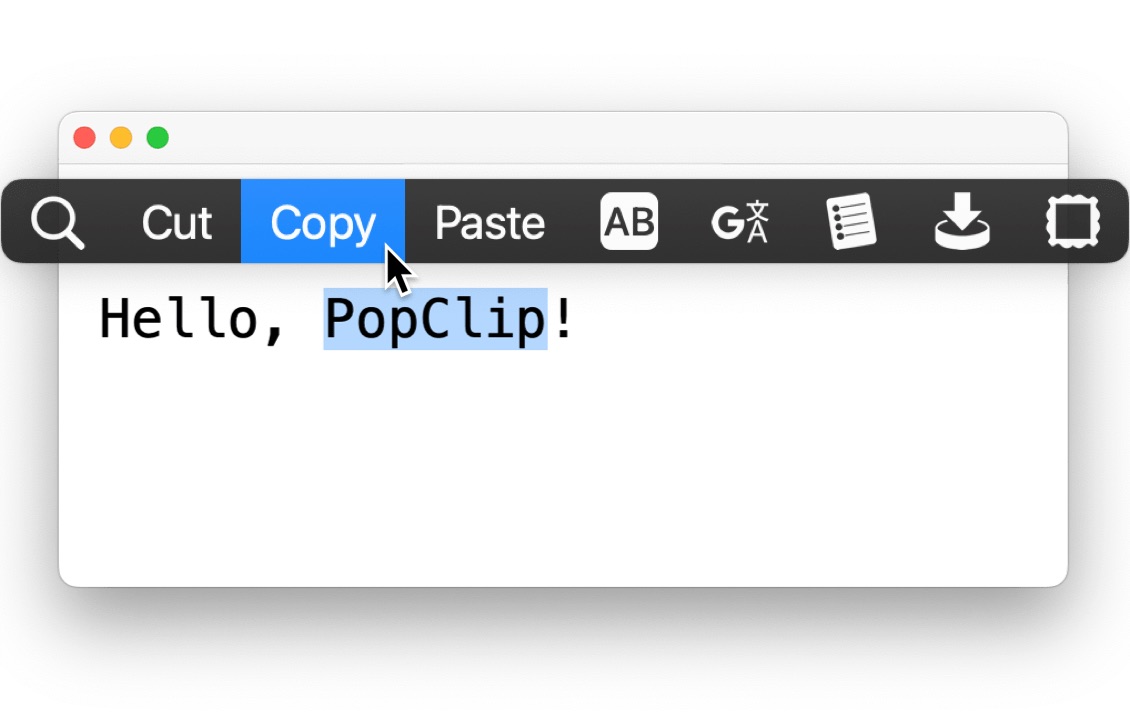 PopClip makes text selection on the Mac smarter.
Photo: PopClip
PopClip makes text selection on the Mac smarter.
Photo: PopClip
I started using PopClip just a few weeks ago, and I can hardly believe I didn’t start using it earlier. It surfaces a small action bar whenever you select any text on macOS. Sounds pointless and trivial? There are a bunch of useful actions available in the action bar that appears. And you’re free to add more through extensions, which make PopClip even more powerful.
I use PopClip dozens of times a day to copy text, paste it without formatting, quickly search selected words, open links, convert text to lowercase or uppercase, and instantly send snippets to apps like Notes, Todoist or ChatGPT.
The best part is that PopClip works everywhere — browsers, PDFs, code editors and emails — without needing app-specific shortcuts or menus. Pairing PopClip with Raycast further streamlined my workflow.
A common workflow for me looks like this: I select text in Chrome or a PDF, use PopClip to quickly clean it up or copy it to the clipboard. Then, I trigger a Raycast action to save it to Notes, append it to a Todoist task, or pass it into another automation.
Download from: Pilotmoon Software
Ice
Ice brings sanity to my Mac’s menu bar. Otherwise, it would turn into a chaotic mess, with tons of unwanted icons from background apps and random utilities.
The app gives me full control over what lives in my menu bar, and, more importantly, what doesn’t.
I previously used Hidden Bar, but switched to Ice earlier this year due to the way it handles hidden icons. Instead of showing them in the menu bar itself, Ice displays them below the menu bar. This might not seem like a big deal, but it helps a lot — especially on the MacBook Pro. Otherwise, having too many menu bar icons conflicts with the notch.
With Hidden Bar, icons would frequently jump around, overlap or disappear when space got tight. Ice’s below-the-menu-bar layout keeps everything predictable and readable, even when I have a lot of background apps running.
Ice is free to download and use, making it an easy recommendation. It does not get regular updates, but the app works just fine, which is what ultimately matters.
Note: The current stable release of Ice crashes on macOS Tahoe. Instead, you must use the newest beta build.
Download from: Jordan Baird on GitHub
DockDoor
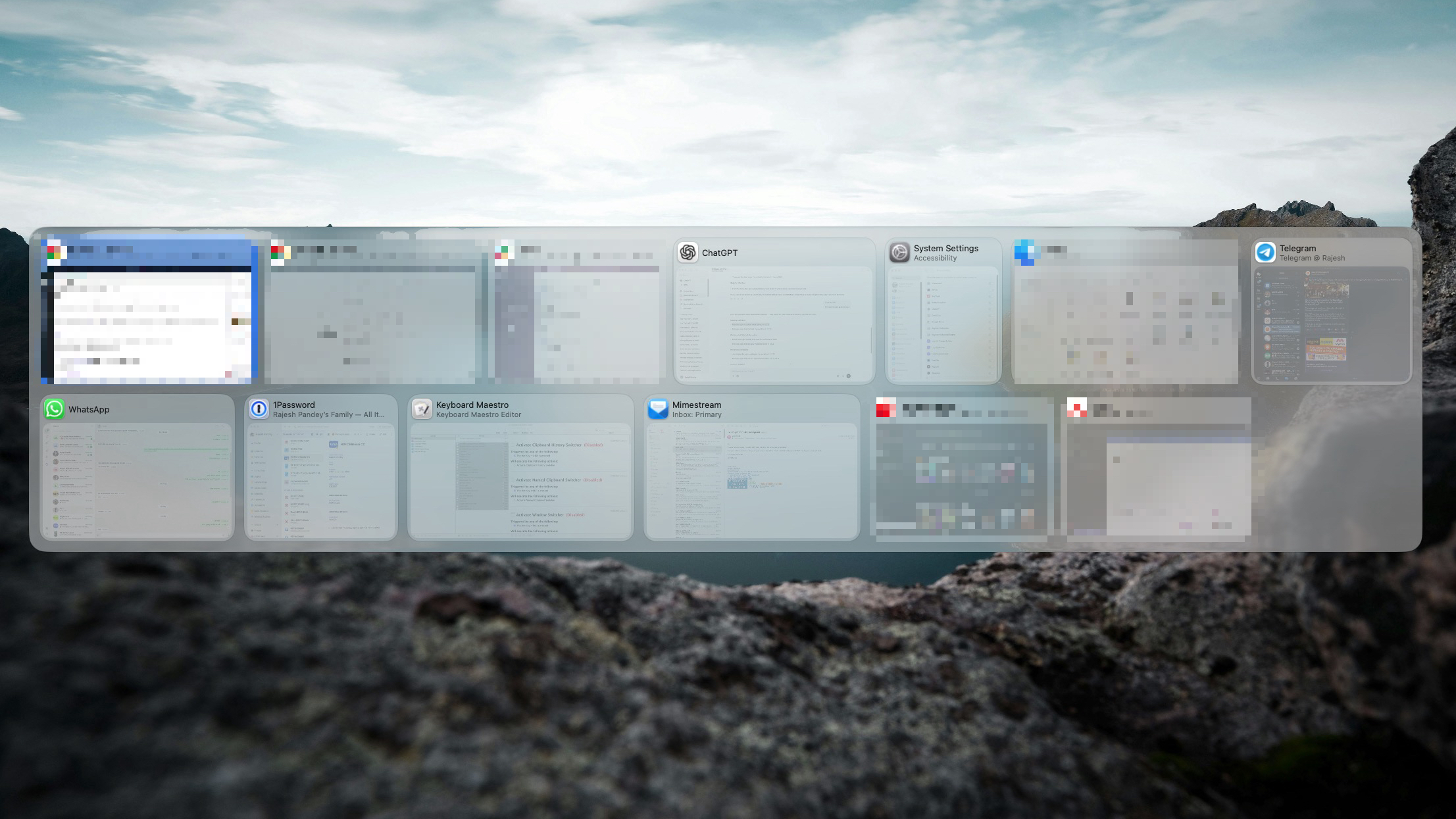 DockDoor is a better Cmd-Tab replacement.
Photo: Rajesh Pandey/Cult of Mac
DockDoor is a better Cmd-Tab replacement.
Photo: Rajesh Pandey/Cult of Mac
Until the middle of this year, I was a huge fan of Alt-Tab for Mac. But then I came across DockDoor. It enhances macOS’s default app switcher while also supercharging the Dock with live window previews, window controls and quick actions.
Hovering over an app icon in the Dock will show live previews of all its open windows. From there, I can close a specific window, bring it to the foreground, or cycle to the one I want.
Likewise, DockDoor displays the window previews of the selected app during app switching. This way, I can directly jump to the window I want.
Considering all the functionality that DockDoor packs, it’s surprising that it’s free to download and use.
Download from: DockDoor
Honorable mentions
- Bloom: Bloom is the Finder replacement I didn’t know I needed. It’s feature-rich, extremely customizable, and packed with power-user features that make file management easier.
- **iStat Menus: **An essential utility that I install on every Mac I use. It lives in the menu bar and provides real-time insight into the Mac’s CPU, SSD, RAM and network usage.
- 1Password: The backbone of my digital life on the Mac. 1Password securely stores all my passwords, passkeys, secure notes and documents, bringing order to my digital world.
- Dato: It replaces the basic macOS clock with a powerful menu bar calendar, providing quick access to world clocks, upcoming events and time zone conversions.
More amazing Mac apps
Looking for more great software to maximize your Mac? Check out these roundups:
- 12 must-have free Mac apps I always install first
- How I supercharge window management on my Mac
- These 6 apps will change how you use your Mac

Rajesh has been closely following and writing about the latest happenings in the world of mobile for nearly a decade now. While he prefers Android, he does not deny the superiority of Apple’s products and ecosystem.